Fidelity Transactions NOT downloading
Answers
-
Downloads are working again. I have to spend the next few hours doing maintenance and cleanup. The first pass resulted in share imbalance. I need to figure out how the resolve the placeholders. Is there a quick guide to walk through how to adjust Q share balance so it agrees with Fidelity?
NB: I was not very optimistic this would get fixed this week. I am really grateful.
1 -
Olaf: I use Quicken Deluxe (latest client Windows version) and have 10 brokerage accounts at Fidelity Investments with a single Web Fidelity log-on, and 10 matching accounts in Quicken. I use quicken to download Fidelity transactions on a daily basis. Quicken and Fidelity have recently established a new transaction download protocol via a Intuit-owned link-connection interface named "Express Web Connect +" that uses the OATH/Token protocol. This link often breaks without error display or other warning. In addition, the relink process is not defined, is not reliable, and relink success or failure is not displayed. The user can think everything is fine, but after a reauthorization and re-linking that appeared successful, transactions still do not download, again with no error display. This is very frustrating as the vendor reauthorization and re-linking process in Quicken TAKES A LONG TIME and when not successful the complete process needs to be repeated in the hope that "this time it will work".
Olaf: Question: What is a reliable follow-on process and steps to re-establish the "Fidelity Investments transaction download link to Quicken"? Be sure at the beginning to include steps and reasons to: (1) Refresh Sign in, then (2) Reset Cloud Data.
Gemini: Re-establishing a reliable connection with Fidelity after the transition to Express Web Connect+ (EWC+) can be exceptionally finicky because the "token" that authorizes Quicken to talk to Fidelity often gets "stuck" or out of sync between your local data file and Quicken’s cloud servers.
To fix this, you must perform a "deep clean" of the connection data. Following these steps in this specific order is the most reliable way to clear out the "ghost" settings that cause the silent download failures you are describing.
Step 1: Refresh Sign In
Reason: This forces Quicken to refresh your Quicken ID registration token. If this token is stale, it can't properly negotiate the OAUTH/Token handshake with Fidelity, leading to successful-looking logins that don't actually pass data.
- Go to Edit > Preferences.
- Select Quicken ID & Cloud accounts on the left.
- Click Sign in as a different user (this is effectively a "Sign Out" button).
- Type yes to confirm and sign out.
- Quicken will prompt you to sign back in. Use your existing Quicken ID and password.
Step 2: Reset Cloud Data
Reason: Quicken uses a "Cloud Dataset" to manage EWC+ connections. If there is a mismatch between your local file and the cloud (which happens often when a link "breaks"), Quicken may think it’s connected when it isn't. Resetting the cloud data wipes the cloud's memory of your bank links so you can start fresh.
- Go to Edit > Preferences > Mobile & Web.
- Click Reset your cloud data.
- Follow the prompts to complete the reset. This does not delete your transactions; it only clears the sync and connection metadata.
Step 3: The "Deep Clean" Re-Link Process
After refreshing your ID and the Cloud, follow these steps to re-establish the Fidelity link. Crucial: You must deactivate all 10 Fidelity accounts before trying to reconnect any of them.
A. Deactivate All Fidelity Accounts
- Go to Tools > Account List.
- Check Show hidden accounts at the bottom left (important in case a "ghost" account is hogging the connection).
- For every Fidelity account, click Edit > Online Services tab > Deactivate.
- Switch to the General tab and delete the "Financial Institution" name and "Account Number" fields. (This ensures Quicken doesn't try to use old, cached ID info).
- Click OK and repeat for all 10 accounts.
B. Revoke Access at Fidelity (External)
- Log into the Fidelity website directly.
- Go to Profile > Security > External Data Sharing.
- Find Quicken (or "Intuit") and Revoke or Remove access. This clears the token from the bank's side so a brand-new one can be generated.
C. Reconnect and Link
- In Quicken, go to Tools > Add Account.
- Search for Fidelity Investments.
- Follow the prompts to log in. This will open your web browser for the OAUTH/Token authorization.
- Crucial: On the Fidelity authorization page, make sure all 10 accounts are checked.
- Once redirected back to Quicken, you will see a list of accounts. Do not click "Add".
- In the Action column for each account, click the dropdown and select Link to existing account.
- Carefully match each Fidelity account to its corresponding Quicken account name.
Summary Table: Why it fails.
Problem
Root Cause
Solution
No Error Display
Quicken thinks the Token is valid, but the Bank has revoked it.
Refresh Sign-In (Step 1).
Silent Fail (Success msg, no data)
Cloud Data is out of sync with Local Data.
Reset Cloud Data (Step 2).
Link won't "stick"
Hidden or old "Direct Connect" settings are interfering.
Deactivate all accounts & clear "General" tab (Step 3A).
2 -
Brilliant. You have solved a problem I've been having for 6 months. Neither Fidelity nor Quicken support were able to resolve the problem.
1 -
I have tried all the above steps and even got on a chat session where the Tech walked me through creating a copy of the quicken file. After opening and adding Fidelity/Link to existing accounts, everything appears fine, I see all of my transactions. However, I suddenly see all of my transfers in and out of the brokerage accounts now shown as an FCASH security so I can't balance. I'm going through and deleting these transactions to see if I can pull down the original transfers.
0 -
Hello All,
Thank you for contributing to this discussion.
The Open Alert for various Fidelity issues has been marked resolved. The alert asks that anyone still experiencing issues contact Quicken Support for assistance so we can handle these on a case-by-case basis and escalate the issue if needed.
Thanks again!
Quicken Alyssa
Make sure to sign up for the email digest to see a round up of your top posts.
0 -
After talking to support and going through the steps to create a copy of my Quicken file, I can connect to Fidelity, and I can now successfully download transactions. However, whatever fixed it introduced a new problem. Quicken now considers any cash transfers in or out as belonging to an FCASH security. Where before, I would see on the Investing page a node for Fidelity and under that node, a 'stock' node and a cash entry.
Now, I see the stock node, an FCASH node, and a cash entry. For some reason, it has created a 'CASH' security and transactions that come in for cash (Dividends, transfer out) keep getting interpreted as a security Deposit or Sold. Worse, I see the dividend and transfer out transactions AND a matching CASH Deposit/Sold transaction. I can't figure out how to stop this behavior and only way to actually reconcile is to keep deleting these FCASH transactions.
I've gone through the 'copy' steps multiple times but as soon as I complete connecting to Fidelity, the FCASH security is created.
[Edited-Readability]
0 -
Hello @dantrav,
Thank you for sharing your experience. To clarify, is FCASH a sweep fund that should be treated as cash rather than a security? If that is the case, then I recommend checking the money market securities/cash options for the problem account(s). To do that, backup your Quicken file, then go to Tools>Account List, click the Edit button next to the problem account, then select the Online Services tab. You should see a Reset Money Market securities/cash options button near the lower right of the window.
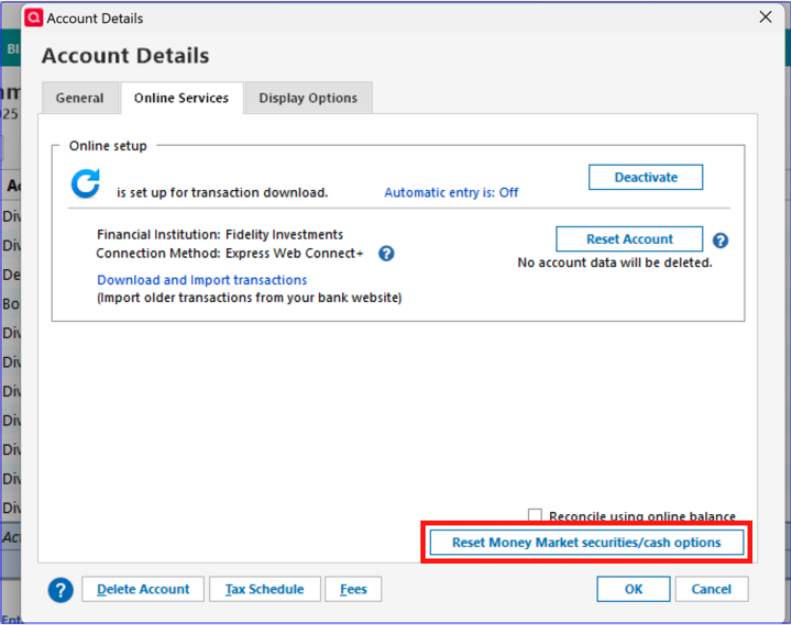
Click that button and make sure that FCASH is set to be tracked as cash.
I hope this helps!
Quicken Kristina
Make sure to sign up for the email digest to see a round up of your top posts.
0 -
Now that Quicken/Fidelity is "up and running" and the Gemini re-link process is known, I hope Quicken Development will recognize as a "Priority 1 Bug" that "One Step Update", and similarly individual account "Update Transactions", does not have functionality to report to the user: (1) a failed Express Web Connect + / OAUTH Token update (any reason), (2) a failed "re-link process" where the Gemini-described re-link steps "did not work/succeed" (any reason). If additional code is needed to detect such failures in either the Intuit Express Web Connect + pipeline/link, and/or the Fidelity token-owner side, the Quicken please write and test that code. Allowing "One Step Update" and "Update Transactions" to run and "error-out" with no error-reporting to the user is unconscionable.
Also re: means of error reporting, if such failure is a "601 Error" then the 601 error should be reported-out to the user, regardless if the 601 error cause is the one that is currently reported out to external/users, or if the error source is the separate 601 error source (same effect) that is now only reported INTERNALLY and only able to be seen by "Quicken Support Supervisors. The 601 error should also explain that the link is "broken", requiring a repeat of the Gemini re-link process.
0 -
I don't have a 'Reset Money Market securities/cash options.
My view for Fidelity has 'Treat this Money Market as cash: None' and a Set/Edit button.
Selecting that reports 'Standard Behavior' No money market fund is treated as cash in this account.
I don't have a Money Market fund. When I select Customize, I see 'none' for the Money Market Fund used in this account and 'Treat the Money Market as Cash and don't show as a position.
1 -
Thank you for your reply,
Thank you for confirming that the cash representation isn't causing the problem.
You mentioned that you made a copy of your file, and have done so multiple times. What issue(s) prompted you to create these copies? Did you validate copied files after creating them?
Thank you!
Quicken Kristina
Make sure to sign up for the email digest to see a round up of your top posts.
0 -
I made a copy of my Quicken file at the request of support because I could not download Fidelity transactions. I'm using the copy because this fixed the download issue but I'm now hitting the FCASH issue.
Yes, I did validate the copy. In fact, I also validated the original and neither reported any issues.
I'm also unable to connect to Wells Fargo after the copy. Should I include those details or start a new thread?
[Edited-Readability]
0 -
Thank you for your reply,
Please start a new discussion so that we can troubleshoot these issues without pulling this discussion off topic.
Thank you!
Quicken Kristina
Make sure to sign up for the email digest to see a round up of your top posts.
0 -
Was it just a normal copy function within Quicken or did you do something special during the copy to get this to work?
[Edited-Readability]
0 -
thanks, unfortunately this did not work for me :(
0 -
I had to do a shift-ctrl when hitting the next button after selecting copy. I'm not sure what that accomplished though. I tried that approach and simply clicking next, multiple times and ended up in the same state. I resolved the Wells Fargo issue by calling them directly and they resolved the it quickly.
1 -
Thank you both for adding to this discussion.
Thank you for clarifying for fellow users.
Did following that guidance help resolve the issues you are experiencing?
Looking forward to your response!
Quicken Alyssa
Make sure to sign up for the email digest to see a round up of your top posts.
0 -
Yes it did. But the guidance wasn't clear about clearing the cloud data even when sync was off and you weren't using the cloud. That was the key for me, I had to turn sync on then clear the data. When I skipped that step The first time it didn't work, then I reached out to support and they walked me through step by step and at that step they told me that yes I shouldn't skip it and I should turn it on and clear it. I am very glad this is fixed, thank you.
2 -
Thank you for following up and letting us know you were able to get this resolved with our support team.
If you need more help, let us know.
Thanks again!
Quicken Alyssa
Make sure to sign up for the email digest to see a round up of your top posts.
0 -
Fidelity was working for me for about 2 months - I finally had stability.
Unfortunately, a 4/3 cash transfer out transaction DID NOT download.
I am editing this - I forgot it was a holiday on Friday and it may download tomorrow. Let's see.
David
0 -
I've observed that cash transactions that occur after hours on Fridays will often not download into Quicken until the following Tuesday morning but sometimes it can be as early as the following Monday evening. I often see this happen with some banks, as well. I think this is because after hours transactions are captured as posted on the next business day which would be Monday and then not put into the downloadable transactions bucket until that evening/night.
BTW, I had a cash distribution that occurred on 4/3 and it has not yet downloaded, too. Like you, I am anticipating that it will download by tomorrow morning.
Quicken Classic Premier (US) Subscription: R66.28 on Windows 11 Home
0 -
@davidmarketing re: that transaction, what shows on Fidelity's website?
Q user since February, 1990. DOS Version 4
Now running Quicken Windows Subscription, Business & Personal
Retired "Certified Information Systems Auditor" & Bank Audit VP0 -
For me, this cash distribution showed up as pending in my online bank account the evening of 4/3 and the bank then downloaded the posted transaction into Quicken on 4/4.
But in my online Fidelity account it was listed as planned activity the evenings of 4/3 through 4/5 and did not show up in my online IRA account register until just this morning. I am pretty confident it will be downloaded not later than tomorrow morning.
BTW, this is similar to my experience with cash distributions from my Fidelity accounts even back when they still supported DC so I don't view this as being caused by the EWC+ migration.
I also see this happening with buy/sell transactions of MFs and with dividends which also occur after hours.
But I do not see this happen with buy/sell transactions of stocks, ETFs and brokered CDs as those transactions are completed at Fidelity during open market hours. These types of transactions that occur on a Friday usually get downloaded into Quicken on Saturday morning.
Quicken Classic Premier (US) Subscription: R66.28 on Windows 11 Home
0 -
@Boatnmaniac "Transactions that occur after hours on Fridays" is, unfortunately, a bit vague … because everything posts to your accounts after the market closes and usually overnight.
The variable is whether it's a customer initiated transaction or Fidelity (or externally) initiated. For example, dividends paid on Fridays should normally download on Saturday. Same for transfers into/out-of account. Same for transactions that you initiate before the market closes (and there MAY be a short grace period after market close).
But if the customer initiates a cash txn after any grace period on Friday, it won't actually occur until the next business day and will download the day after that.
Q user since February, 1990. DOS Version 4
Now running Quicken Windows Subscription, Business & Personal
Retired "Certified Information Systems Auditor" & Bank Audit VP0 -
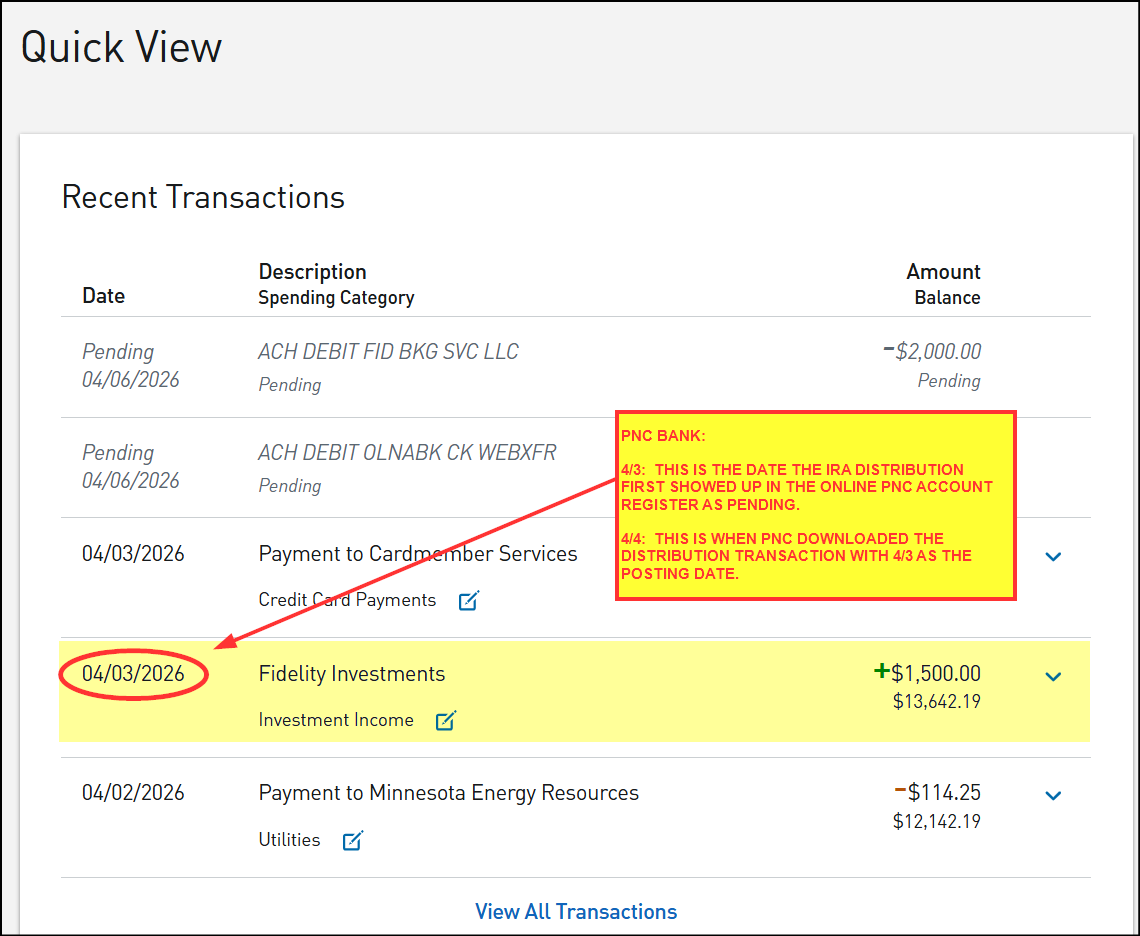
What you describe is not my experience with Fidelity when it comes to cash distributions from my accounts. Below are pictures from my PNC checking account and Fidelity IRA account reflecting what I described in my last post.
At first glance these pictures make it look like Fidelity is giving me a short-term (from 4/3 to 4/6) money float. But it needs to be noted that the Fidelity downloaded Online Balance on 4/3 did reflect the reduced cash balance…even though the Fidelity website still does not yet show that.
All this goes to show that when it comes to distributions (at least the ACH distributions) Fidelity's website lags some from the actual transactions. (I don't use wire transfer distributions so I cannot comment on whether or not this issue also occurs with wire transferred distributions.)
PNC CHECKING ACCOUNT REGISTER:
FIDELITY IRA ACCOUNT ACTIONS TAB (AS OF 4/6):
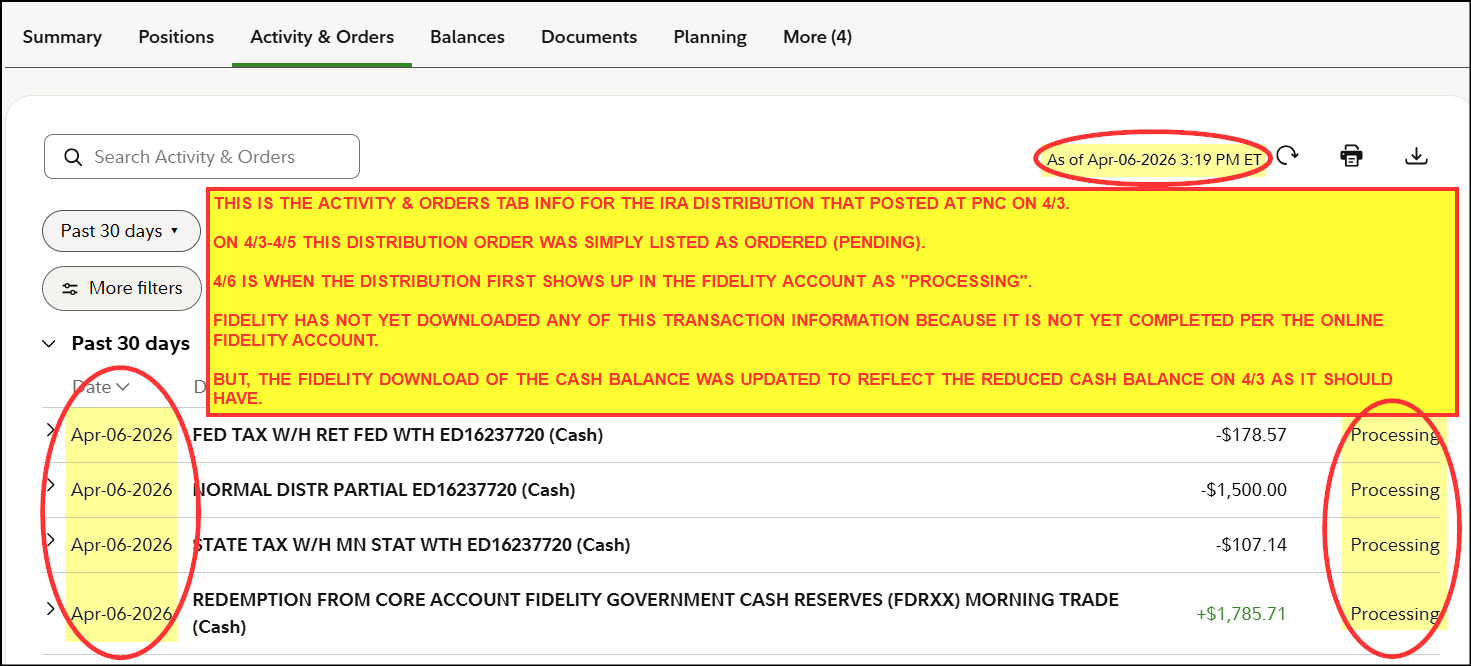
This is not an outlier. For me, this is the typical situation when it comes to distributions that occur on Fridays. On other weekdays, the flow of other distributions is similar without the added 2 days weekend delay so there is only a 1 day delay in the website being updated to reflect the distribution that occurred the day prior to it.
Quicken Classic Premier (US) Subscription: R66.28 on Windows 11 Home
0 -
What's in your PNC account is called a Pre-Note. It's equivalent to a "Pending".
Question: how can the money be at PNC when it hasn't left Fidelity yet (it's still Processing)?
And, what isn't shown is what time (or at which location) the $1500 transfer was initiated.
SO, while your graphics are informative, they prove nothing.
Q user since February, 1990. DOS Version 4
Now running Quicken Windows Subscription, Business & Personal
Retired "Certified Information Systems Auditor" & Bank Audit VP0 -
@NotACPA -
What's in your PNC account is called a Pre-Note. It's equivalent to a "Pending".
Question: how can the money be at PNC when it hasn't left Fidelity yet (it's still Processing)?
I think you misread what I'd posted. It's not that the Fidelity did not do the distribution transactions on 4/3 to support the necessary transactions on 4/3. Instead, it is a matter of Fidelity's website showing data that is 3 days old (for Friday distributions) or 1 day old (for other weekday distributions). Some pretty good evidence of this is that Fidelity downloaded the correctly decremented Online Balance on 4/3 even though none of the transactions supporting that were reflected on the Fidelity website until 4/6.
Also, PNC shows pending transactions in italics. Posted and available for withdrawal transactions are not in italics. The PNC mobile App is even more clear than this as pending transactions are shown in a box labeled "Pending" with posted transactions listed below that. No, that distribution transaction in the PNC picture is definitely a posted transaction….nothing pending (or pre-note) about it.
BTW, I've never heard of a bank or any financial institution showing nor downloading a pre-note/pending transaction as posted when it was not actually posted. Are you saying this happens?
And, what isn't shown is what time (or at which location) the $1500 transfer was initiated.
How would anyone know what time Fidelity initiates a transaction (or at which location….please explain what you mean by this) when Fidelity does not show that information on their website?
But this IRA distribution came from a Churchill managed account. Earlier today I talked with my contact at Churchill and he told me the transaction order was automatically placed with Fidelity on 4/1 and that Fidelity started to process it on 4/2 in order to support the 4/3 distribution. (Yes, he said that Fidelity did actually process the distribution on 4/3.)
SO, while your graphics are informative, they prove nothing.
IMO the graphics prove a lot about what both PNC and Fidelity are reporting. You are correct that they do not prove anything about the process details behind those graphics. But what they provide is strong circumstantial evidence of what the sequence of events is. And really, that's about all that we can deduce since we can't see inside the internal systems of any financial institution, right?
Quicken Classic Premier (US) Subscription: R66.28 on Windows 11 Home
0 -
PNC is giving you a bonus. The money hasn't left Fido if it's still "processing" there, it's a pre-note.
Q user since February, 1990. DOS Version 4
Now running Quicken Windows Subscription, Business & Personal
Retired "Certified Information Systems Auditor" & Bank Audit VP0 -
Perhaps. Perhaps not. I think it's more likely that Fidelity gave me the bonus since Fidelity had decremented the Online Balance in Quicken on 4/3 which correlates to PNCs posting of that transaction on their website on 4/3. We can never know what actually happened since we cannot see Fidelity's nor PNC's internal ledgers.
But this has gotten sidetracked from the original subject of this part of this thread which was about whether or not Fidelity's EWC+ download process is, again, broken. My initial comments were about how Fidelity downloads of distributions tends to lag behind the bank's downloads of those distributions…by about 3 days when the distribution occurs on Fridays and by about 1 day when it occurs on other weekdays…and that we should anticipate Fidelity to download the 4/3 bank transactions on 4/7 or perhaps the evening of 4/6.BTW, for me Fidelity did download the transactions for that distribution the morning of 4/7 with a posting date of 4/6 proving that Fidelity's EWC+ download process is not broken, again (at least not for me). So, I'm a happy camper.
Quicken Classic Premier (US) Subscription: R66.28 on Windows 11 Home
0 -
Of course EWC(+) lags. Intuit has to pickup info at some time overnight and then hold it until you download.
IF Intuit's timing is off, and they do the pickup before the FI posts, Intuit won't get the info until the next night.
That's one of the disadvantages of EWC vs either DC or WC, neither of which Fido supports,
Another disadvantage (indirectly referenced here frequently) is screen-scraping vs. reading the FI's database.
Q user since February, 1990. DOS Version 4
Now running Quicken Windows Subscription, Business & Personal
Retired "Certified Information Systems Auditor" & Bank Audit VP0