Net paycheck amount in Calendar is way off

I recently search the Community site and locate the following chat "Paycheck in Calendar view shows wrong amount, But it's right...".
I am experiencing something very similar, and yes, I am storing my data file in OneDrive and syncing every folder/subfolder and file.
Can someone explain how storing the file this way creates the calendar issue for my paycheck? Also, why are no other calculations effected, like mortgage?
Answers
-
Hello @SilverEagle,
Thanks for sharing your experience!
We strongly advise against storing your main data file in any cloud-synced folder (like OneDrive, Dropbox, etc.). These services sync in real time and can interfere with how Quicken reads and writes to the file, potentially causing data damage.
This kind of damage doesn’t always affect every area of the file—sometimes only certain features (like Calendar paychecks) show symptoms, while others (like mortgage calculations) seem unaffected. There's no predictable pattern, which is why these issues can be confusing.
However, once data damage begins, it can progress and eventually lead to full file corruption. In the worst-case scenario, the file could become unusable and permanently inaccessible. That’s why we strongly recommend keeping your data file saved locally on your hard drive, not in a cloud-synced folder.
Thank you!
-Quicken Anja
Make sure to sign up for the email digest to see a round up of your top posts.0 -
Anja,
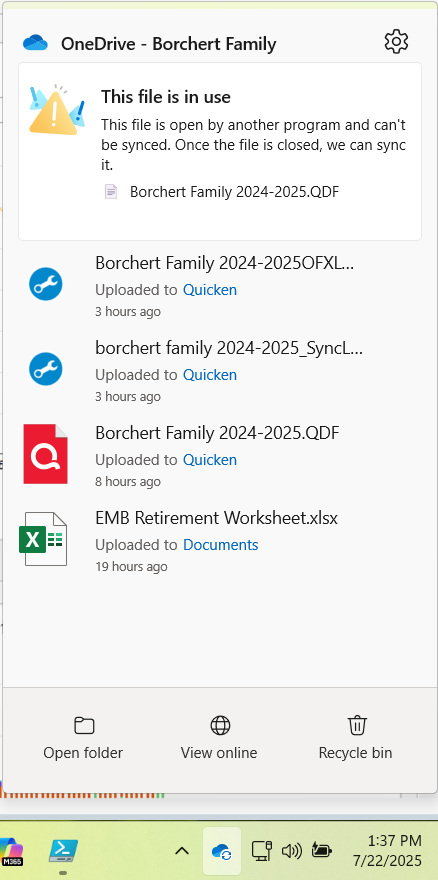
Thank you for your response. After reading your reply, I see that you are unsure of the "how" this is happening and to simply state that sometimes only certain features show symptoms is not very investigative. As you can see by the photo I attached. OneDrive does NOT sync files that are open; it simply patiently waits for Quicken to close the file. Now, if there are other files like OFXLOG.DAT, etc. that play a role in how the data is displayed, then perhaps these too can be kept open while Quicken is running, so OneDrive will not interfere.
I'd be happy to chime in any discussions your developers may need to better understand just where and how this continues to happen.Also, I cannot be the only person since CO_Cowboy in 2023 to have this happen if it is tied to OneDrive. For crying out loud, even the developers are testing against OneDrive per their version notes.
0 -
You asked your question with the presumption that the problem was caused by OneDrive. And as such got the response on "how it is it is possible" and the best practices which is not to store it on OneDrive as to eliminate it as a source of a problem.
Neither you nor @Quicken Anja have actually proved that the problem is with keeping your data file on OneDrive, only that it might be "possible" that caused the problem.
There are many other possible causes of such problems in Quicken like Sync to Mobile, and it isn't clear that the problem isn't in the calendar view itself, and therefore redirecting the question on to the path of OneDrive just complicates things.
A better approach would be to drop the assumptions and state exactly what the problem is and when it has occurred. Note that there are multiple calendars in Quicken and as such you have to be clear of which one you are referring to.
There is the one on the Bill&Income view, there is the one that you get when you get when you select "Show Full Calendar" on that view, and then there is the calendar item that can be shown in the Classic Dashboard on the Home tab.
1 -
@SilverEagle I have used OneDrive with Quicken for more than a year now and I never have had an issue. One of the settings I have found that seems to make a difference is "Always Keep on this device". If you right click on a folder or file, and select "Always keep on this device", it always keeps a local copy of the folder or file on your local drive. I have selected this option for all of my folders and files in the OneDrive directory. Here is some documentation of this setting and some benefits -
"Always keep on this device" – your offline superpower
When you select "Always keep on this device" for a file or folder in OneDrive, you're telling Windows to download and store a permanent local copy, even if you're not connected to the internet. Here's what that unlocks:
Key Benefits
- Offline Access: You can view and edit your files anytime—even without an internet connection.
- Faster Performance: Local files open more quickly since they don’t need to sync from the cloud each time.
- Backup Assurance: Even if something happens to your internet or OneDrive sync, your local copy remains intact.
- Predictable Availability: Unlike "cloud-only" files, these won’t suddenly disappear due to storage management or OneDrive settings.
0 -
@Chris_QPW and @CaliQkn thank you both for your responses. Both offered good insight.
Chris_QPW, the only reason I included my OneDrive connection was because of that older article. Back in 2023, when the previous user asked the similar question, Quicken support's only response was to question whether OneDrive was used. Then in Dec 2023, according to the Release Notes, the developers released R53.26 that "addressed file opening issues from OneDrive…", so this proves that testing is being done regarding the use of OneDrive with Quicken files. I appreciated your direct response to Anja regarding alternative causes.
CaliQkn, I loved your take on this and just wanted to add that in order to see the "Always keep on this device" option, you have to enable the Files On-Demand feature within the Advanced Settings of OneDrive. I will test this out for a couple weeks and see how my experience is.Thank you both for chiming in as the user base is sometimes the best support channel!
0 -
@SilverEagle Did you get to the point where you are getting the right net amount for the paycheck on the calendar?
If not, possible ideas on trying to get that would be running Validate and Repair, and that doesn't fix it see if creating a new paycheck reminder shows up correctly. If it does, then you can remove the old one and duplicate everything from old one on the new one and hopefully that will stay fixed.
0 -
Looks like Validate/Repair may be the solution as it shows that is repaired a Scheduled Transaction related to my payroll entry.
EDIT: No, the validate/repair did not solve the issue.
1 -
Thanks for the update!
Since the Validate/Repair didn’t fully resolve the issue, did you get a chance to try the second part of Chris’ suggestion—creating a new paycheck reminder to see if it shows up correctly? If the new one works, you could try duplicating the details from the old reminder, as @Chris_QPW suggested.
Thank you!
-Quicken Anja
Make sure to sign up for the email digest to see a round up of your top posts.0 -
Thank you Anja for your follow-up.
I was able to jot down the paycheck details, delete the paycheck from the Income & Transfers, run a Validate/Repair, and then create a new paycheck. This continues to show the a similar issue, but there is more; see below.
After deleting the paycheck and running the Validate/Repair, I noticed that in the data_log.txt file generated by the repair, that my paycheck was listed as a "Corrected scheduled transaction", even though it was confirmed as deleted.
So when I created a new paycheck reminder, I used a different Company name as I wanted to see if the old company name would continue to appear in the repair log. After completing the paycheck reminder, I closed Quicken. The next day, after the Schedule updates ran, I noticed that the paycheck reminder was off again, but this time by a much lesser amount, about $300 (see attached screenshot). So I ran the Validate/Repair, and lo and behold, there are now two "Corrected scheduled transactions"; one for my new paycheck and one for my old paycheck.
I'm thinking the reason my paycheck is off may have to do with my payroll taxes categories. I use double-nested sub-categories.
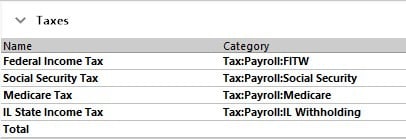
Any chance this could be that root cause for my paycheck net-pay issue?
But I am still curious why my old paycheck is still showing up as a scheduled transaction in the Validate/Repair log. I looked at my Projected Balances tab and set the Time Range to 12 months and I do not see any transaction listed with the original Company name I used prior to recreating my current paycheck. Thoughts?0 -
Thank you for the detailed information and your continued efforts troubleshooting this issue.
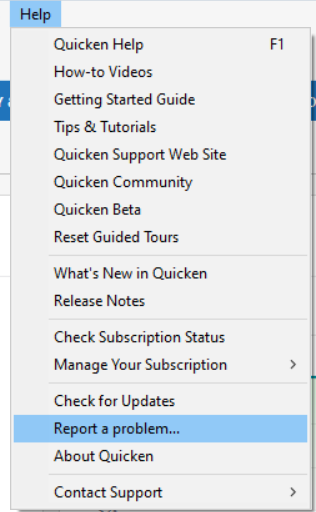
We have forwarded this issue to the appropriate internal teams for further investigation. To assist this process, please navigate to Help > Report a Problem within your Quicken program and submit a problem report with relevant log files and screenshots attached. This will greatly contribute to our developers’ ability to diagnose and resolve the issue.
Including a sanitized file with your report is especially helpful. A sanitized file removes personal and sensitive information, allowing you to safely share your data file with the Quicken team for deeper analysis.
While you won’t receive direct feedback through this submission channel, these reports are crucial for tracking and resolving problems. The more reports we receive, the better equipped the team is to find a fix.
Regarding your questions:
- The net paycheck discrepancy could potentially be influenced by how your payroll tax categories are set up, especially with nested sub-categories. Complex category structures sometimes interact unexpectedly with scheduled transaction calculations, so this is a valid hypothesis.
- As for the old paycheck entries still appearing as “Corrected scheduled transactions” in the Validate/Repair logs even after deletion: this can happen if residual references or metadata related to those transactions remain in the file’s internal structures. While these may not show up visibly in your Projected Balances or transaction registers, they could still impact how Quicken processes scheduled transactions in some views.
These are good points to highlight in your problem report, as they will help the team better understand the scope and possible root causes.
We apologize for any inconvenience this has caused and appreciate your patience as we work toward a resolution.
Thank you!
(CBT-750)-Quicken Anja
Make sure to sign up for the email digest to see a round up of your top posts.0 -
Anja, I would love to use the Report a problem feature, but I have never been able to make it work. I even upgraded this PC to Windows 11 and it still doesn't work. Any assistance would be greatly appreciated.
0 -
Thank you for your reply @SilverEagle,
What happens when you try to use the Report a problem feature? Are you seeing any error messages when you try to report a problem?
I look forward to your reply!
Quicken Kristina
Make sure to sign up for the email digest to see a round up of your top posts.
0 -
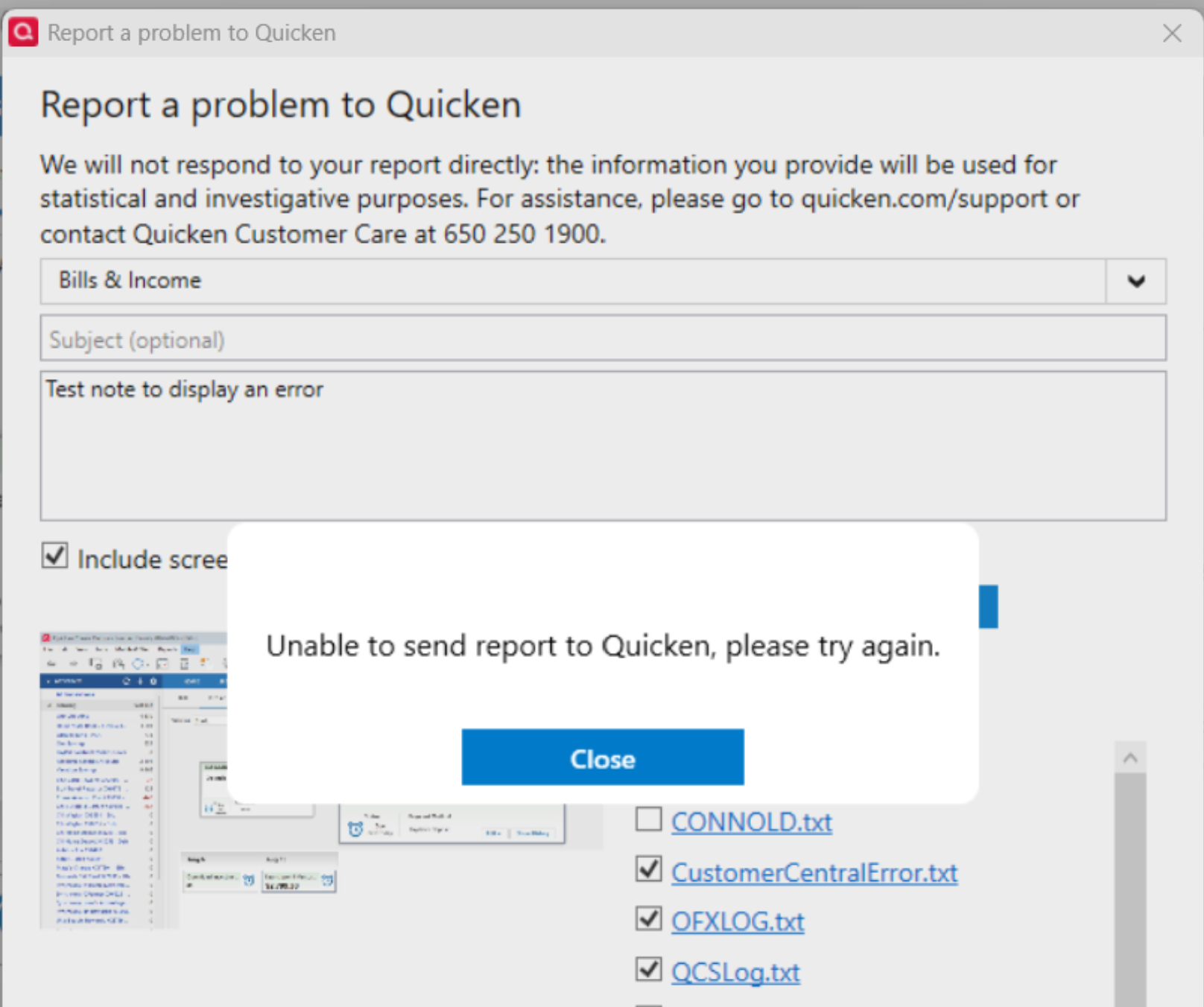
This is what I get.
[Edited Screenshot to Remove Email]
0 -
@SilverEagle Thanks for letting us know! In some cases, the Report a Problem tool may work if you try submitting each log individually—so instead of selecting all the checkboxes at once, try selecting just one log file at a time and submitting them one by one.
If that still results in the same error you've been getting, let us know, and we can explore other ways to collect and submit the necessary information.
-Quicken Anja
Make sure to sign up for the email digest to see a round up of your top posts.0




Categories
- All Categories
- 3 Product Ideas
- 34 Announcements
- 249 Alerts, Online Banking & Known Product Issues
- 19 Product Alerts
- 266 Welcome to the Community!
- 42 Before you Buy
- 1.4K Product Ideas
- 55.8K Quicken Classic for Windows
- 16.9K Quicken Classic for Mac
- 1K Quicken Mobile
- 834 Quicken on the Web
- 84 Quicken LifeHub