One Step Update Summary window too tall with large fonts

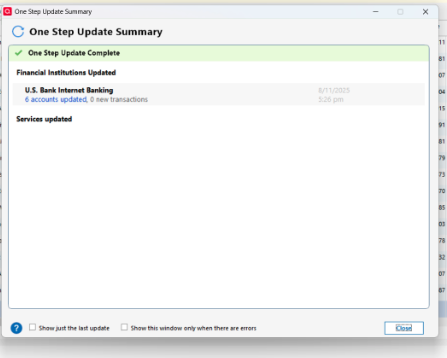
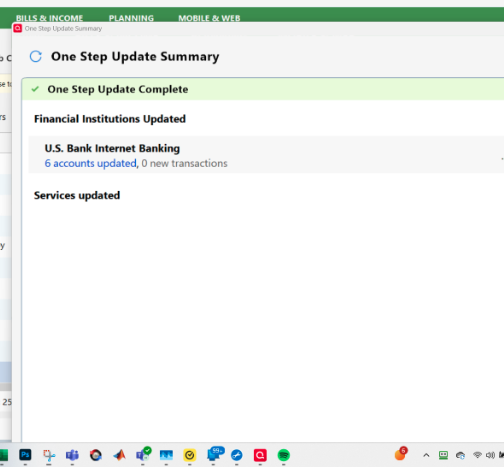
I have Quicken Classic Starter Edition. I'm using "View→Use Large Fonts" and my Windows 11 display resolution is 1980 by 1200 and I'm using a Windows display scaling of "125% (recommended)" When I get a One Step Update on all 6 of my accounts, the One Step Update Summary window that appears after the update is too tall. Not only is it too tall, but it's off the right side of the screen so that the close-window X is not visible and the window needs to be dragged back on screen just to be able to close it. The window is not resizable so the Close button that used to be on the bottom of the window can never be brought on screen. Instead there's tons of unused white space in the window making it much, much taller than it needs to be. It's been like this for several years now but was fine until then. Deselecting Large fonts fixes it but I don't want to run with the tiny fonts as I'm a senior and my eyes aren't so good anymore. This problem occurred on my old computer as well as this new computer. Why is the window too tall and partially off screen? Why is the window not resizable? Is there any fix for this? Is it on their list of bugs to fix in the future?
[Edit - Removed Partial Account Numbers]
Answers
-
Hello @markhayworth,
Thank you for reaching out to the Community with this issue. The way that window displays can be impacted by your screen resolution and any accessibility features you are using on your computer. You may be able to get the window to fit your screen better by adjusting those settings, or by turning off large fonts and using accessibility options on your computer instead.
There is currently an Idea requesting that users have the ability to adjust window size. Please add your vote and a comment if this is something you'd like to see added.
You may also find this Idea post interesting:
Ideas that get enough votes may be implemented in the future!
I hope this helps!
Quicken Kristina
Make sure to sign up for the email digest to see a round up of your top posts.
0 -
Like I said, I don't want to go back to tiny fonts just to have the window fit fully onto the screen.
It's not clear how to add a vote. Do I click the thumbs up Helpful icon on that 6 year old post you referred me to? Sounds like they don't want to fix the resizing issue or else they would have done it over the past 6 years. I'm a software developer so I know it's quick and easy to set a property on a window to make it resizable or fixed size. They must just not want to do it.
But the window being off screen should be considered a bug and it should have higher priority than just a feature enhancement like window resizing. If it were resizable but still too large then I'd still have the hassle of trying to resize it to fit on the screen and then moving it to see if it fit, because the lower right corner is off screen and so you don't know if you made the screen small enough until you've moved it. We shouldn't have to do this. It should just be on screen right from the start.
0 -
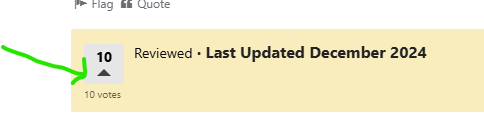
To vote on an idea, click on this on the first page of the idea:
As for your problem, you are using settings that don't meet the minimum requirements for Quicken (even though it isn't clearly spelled out in the documentation).
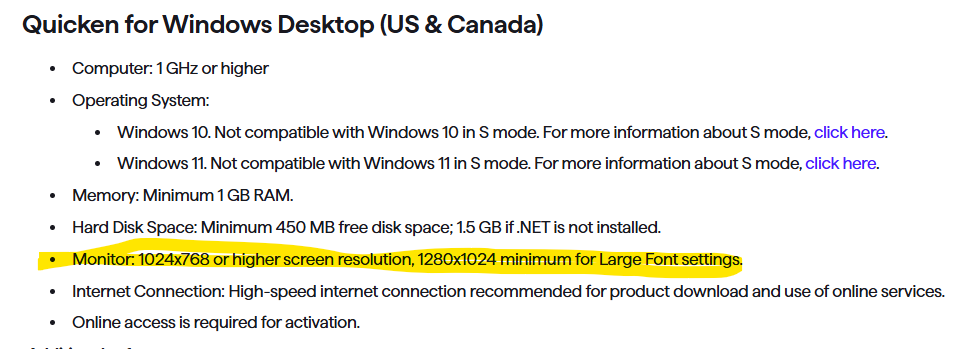
On the surface it might look like your 1980 by 1200 meets this spec, but what isn't mentioned above is that this assumes a Windows scaling of 100%. You are using 125%. Note that "Large Fonts" is another form of scaling, so these combine.
Almost every time it is the vertical resolution like in your case, so I will do the calculations only for it.
Scaling up by 125% is the same as dividing by 1.25
1200 / 1.25 = 960. And as you can see 960 is smaller than the required 1024.
1 -
Font size problems? Display issues? (Windows)
Please try the following:
- Close Quicken !!! (This process won't work while Quicken is running!)
- Check the Compatibility tab settings in your Quicken Desktop program icon:
- In the Windows Start Menu right-click the Quicken icon. Select "Open File Location". This brings up a Windows File Explorer window. Right-click the highlighted Quicken shortcut line item.
or
- Go to the traditional Windows Desktop and right-click the Quicken program icon.
or
- Use Windows File Explorer, navigate to C:\Program Files (x86)\Quicken\ and right-click qw.exe
- Now click Properties.
- Select the Compatibility tab.
- Uncheck all settings.
- Windows 7, 8.1: Check "Disable display scaling on high DPI settings".
- Windows 10, 11: Click "Change high DPI settings". Check "Override high DPI scaling behavior. Scaling performed by:" and select "Application" (also try the other available options repeating the entire procedure!). Click OK.- Users with high resolution monitors, 3840x2160 with 225% scaling, try "System (Enhanced)"
- Be sure to uncheck the "Run this program in compatibility mode for [older Windows version]" setting.
- Click the "Change settings for all users" button.
- Click Apply and exit.
- Reboot Windows.
- Now start Quicken and see if that makes a difference.
Some additional tuning suggestions: - System requirements: 1024x768 or higher screen resolution, 1280x1024 minimum for Large Fonts settings
- Unless absolutely required, try not to use "View / Use large fonts"
- Try setting the bank account registers to use a different font style or size: go to Edit / Preferences / Register, click the Fonts button and try different fonts.
- Try adjusting the bank account registers' row height: go to Edit / Preferences / Register, choose among the available Row Height choices: Compact, Comfortable or Standard
- If all else fails, try changing Windows Control Panel / Display options for "Make text and other items … smaller or larger" to use a different scaling level, but try not to exceed 125%
- Try using the Windows Magnifier. Press the Windows logo key and the = key to open Magnifier. Customize Magnifier to increment Zoom in 25% intervals.
1


