Use of Dropbox for Backups versus Dropbox locally on my HDD

I'm using Quicken Classic 8.3 (build 803.58807.100) on MacOS 15.6.1. I just started using Quicken's free basic Dropbox. It set up a Dropbox location linked to the "Cloud" and it contains (unsure why) a bunch of old BACKUP (Automatic) and (Pre-Update) backup files (three accounts). Maybe they showed up in a previous Quicken update that added Dropbox
My Mac File Manager also has a local "Dropbox" folder with a Quicken Backup Files folder, and an Automatic Backups subfolder which contains BACKUP(Automatic) and BACKUP(Pre-update) files for three accounts I track: Personal finance (current) and two other accounts I don't use anymore. For some reason, under the lead Folder "Quicken Backup Files", there are older backup files for all three accounts (they don't have the BACKUP (xxxxx)) nomenclature and are old enough that I don't need them.
I want to clean this up. Can I backup directly to the Dropbox Cloud the app has set up? Do I need the local "Dropbox" if I use the Cloud? I keep 5 automatic backups per Q Settings. Do I need to keep years worth of Pre-Update versions, or can I manually limit to, say, the last year or so? Can I move the two accounts which are inter-mixed with my current personal to a separate subfolder, or does each update cause all three accounts to get a backup?
I also use Time Machine for backups.
Comments
-
Hello @Sofree,
Thanks for providing all the details about your backup setup. Here’s a breakdown regarding your questions:
- Using Dropbox Cloud vs. Local Dropbox folder
You can use the Dropbox cloud without having the Dropbox app installed locally. The main thing to keep in mind is that accessing files directly from the cloud can be slower, since you’ll need to download them each time. You may also need to manually copy new backups to the cloud if you’re not using the local folder. - How many backups to keep
There’s no strict requirement—you can keep as many or as few as you feel comfortable with. It’s generally a good idea to maintain some older backups for reference, but you don’t need to store every backup from all time. - Creating subfolders
Dropbox allows you to create subfolders to organize your backups. How you structure them is up to you, and each new backup doesn’t automatically have to follow that exact structure—it’s more about what works best for your workflow.
Since you’re also using Time Machine, you’ll have an additional layer of protection for your files.
Hope this helps clarify your options!
-Quicken Anja
Make sure to sign up for the email digest to see a round up of your top posts.1 - Using Dropbox Cloud vs. Local Dropbox folder
-
Anja, Thanks for your feedback! Very helpful.
In #1.: "You may also need to manually copy new backups to the cloud if you’re not using the local folder." If my backups are directed to the Dropbox Cloud, what are you thinking of for a new backup needing manual copying to the Cloud? I'm working just from my iMac desktop.
In #2: I have two inactive, old (years old!) Accounts I don't use anymore and irrelevant sitting in Dropbox Cloud. Can I just delete them and start fresh with Backup on the Cloud for my single Active account? I would keep my Local Files, and just change where BACKUP (Automatic and Pre-Release) are sent (Cloud vs Local). Kind of like a fresh start for my Active File.
In #3: So I create a subfile in the Cloud for each Account that is inactive but I want to keep the last backup. When I automatically backup my current Active file, I'm assuming Quicken won't also make either an Automatic or Pre-Update backup for those inactive files I've stashed in a subfolder, right?
I guess it would be wise to retain my Local Files for as much of the history as I feel might be needed for whatever reason. I am not at this time trying to access Quicken from anything but my iMac desktop, though I may try to at some point from a remote location on another unit.
Should I change from 5 automatic Backup retained to say 10? Does Quicken keep ALL Pre-Update backups? There's around 4 or 5 per year and my Local Dropbox folder must have at least 9 or 10 years of these. Is this necessary? As you may see, I have a bit of cleaning up to do as I have not reckoned well with Dropbox Backup strategies!! Lastly, why would I sign up for Quicken's Online Backup if I use Dropbox Cloud AND Time Machine? What are the advantages? I've read that Apple is not going to support Time Machine backups starting in 2026.
0 -
Thank you for your reply,
For #1, it sounds like you have the Dropbox app downloaded on your computer. If you have that app downloaded, then I would expect any file you are saving to the Dropbox location should be synced with Dropbox, as long as you have syncing enabled.
For #2, what do you mean when you say you have old/inactive accounts? If you are referring to old backup files stored in Dropbox, then it's up to you if you want to delete the files or not. Deleting old backup files should not have any impact on your current Quicken file or it's backups.
For #3, Quicken's automatic backups are triggered for the Quicken file you are currently in or just were in when you exited the program. It should not be making automatic backups of Quicken files that you did not access recently.
It is up to you how many automatic backups you want to retain. In general, if you access your Quicken frequently and trigger automatic backups frequently, then it is beneficial to allow for saving more automatic backups, just in case you need to restore a file from a week or two ago.
If you are comfortable using Dropbox and have your automatic backups set up to store there, then you already have the most important part taken care of (storing some backups in another location, so that in case of computer failure or natural disaster, you won't lose all your Quicken data).
The only additional value that Quicken Online Backup can offer is that it's integrated into the Quicken program, which may make it more convenient to save, manage, and restore backups (for more information on Quicken Online Backup features, click here).
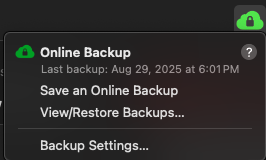
Whether that convenience is worth the additional subscription cost is up to you.
I hope this helps!
Quicken Kristina
Make sure to sign up for the email digest to see a round up of your top posts.
1 -
"For #2, what do you mean when you say you have old/inactive accounts?" One is a non profit inactive for the last year, and the other is a family estate account that was settled 9 years ago. ( I do have an active personal file/account.) The various inactive backup files are just sitting there. I'd like to just keep the most recent backup for each, and delete or move the others to another location separate from Quicken (preferably, delete). If I want to, how do I look at one of the earlier Backup files? My only choice seems to be under "FILE/OPEN" is the Quicken Data file "xxx.quicken". Can't I open an earlier "BACKUP xxx.quickenbackup" by selecting or restoring an older backup file so I can compare the entries?
I'm just scared to death I'm going to throw a wrench in my data if I want to peruse my old inactive account backup files. The reason for checking older backups is to ensure the one I keep has all up to the final entries…need to be sure for tax purposes, or verifying estate details, etc etc. Once I'm sure, I will feel I can delete or stash old backups elsewhere.
The relationship between "xxx.quicken" and "BACKUP(Automatic) xxx.quickenbackup" is very unclear to me (their file sizes, for example, are different) and I can't find a good clear description of how they interact…and I bet you have to be careful maneuvering about between these two quicken file types! Please help explain!
0 -
Backup files are just that - backup copies of a quicken data file. Backup files are compressed so they may be smaller than the quicken data file they're backing up. There's no "interaction" between a quicken data file and its backups. If you have old backup files you want to delete then delete them, it won't affect anything.
If you want to look at what's in one of the backup files, you can select "View/Restore Backups" from the Quicken File menu and the data from the backup you select will be placed in a a new Quicken data file.
1 -
Jon-Thanks for that! Can I assume that the latest BACKUP xxx.quickenbackup reflects my active file as it exists NOW? Or, before I View/Restore an older backup , I assume I should make a backup copy now of my active file, as the latest could be several days old and not have my latest updates. To make sure opening my xxx.quicken data file will be current?
0 -
"If you want to look at what's in one of the backup files, you can select "View/Restore Backups" from the Quicken File menu and the data from the backup you select will be placed in a new Quicken data file."
Jon: I tried this with a backup file using View/Restore and it did get placed as a new Quicken data file iterated with a suffix "2" as in filename 2.quicken. If I do this often, I assume each iteration becomes filename 3, 4, 5, and so on. It would then be my choice as to whether I wanted to keep each in addition to my current file, right?
0 -
@jon
"If you want to look at what's in one of the backup files, you can select "View/Restore Backups" from the Quicken File menu and the data from the backup you select will be placed in a new Quicken data file."Jon: I tried this with a backup file using View/Restore and it did get placed as a new Quicken data file iterated with a suffix "2" as in
filename 2.quicken. If I do this often, I assume each iteration becomes filename 3, 4, 5, and so on. It would then be my choice as to whether I wanted to keep each in addition to my current file, right?0 -
Yes. You could always rename them to something else, or just delete them once you figure out whether you wanted to keep the backup file.
1 -
A few comments, as I missed this thread earlier…
I've read that Apple is not going to support Time Machine backups starting in 2026.
I don't think that's actually what you read. What Apple has announced is that they will not support Time Machine Backups to the Apple Time Capsule starting with macOS 27 next year. The Time Capsule was Apple's hardware device with an integrated wireless router plus a (network-attached storage, or NAS) hard drive. It was discontinued in 2018.
Time Machine backups are definitely not going away. What is going away is Time Machine backups to drives formatted using the old HFS+ file format, and the Time Capsule hard drive only supports HFS+, not the newer APFS.) It will certainly be possible to continue using a hard drive connected to a Mac for Time Machine backups. It will be possible to use third-party NAS drives for Time Machine Backups, if they support Apple's APFS file system. And I believe it will continue to be possible to have a hard drive attached to one Mac, and connect another Mac wirelessly to backup to the same hard drive (the setup I use now).
Should I change from 5 automatic Backup retained to say 10?
Yes! I lobbied Quickne to change the default number of backups to a higher number years ago, and for some reason they didn't. Five backups is too often inadequate for users who run into a problem. If you open and quit Quicken daily, that means your oldest backup is less than a week old; if you open and quit a couple times in a row — the "oh, I forgot to do one more thing" situation — your oldest backup may only be a few days old. That's just not enough backup if you discover something got deleted/messed up 10 days ago! I set my Quicken to retain 50 backups. That might be overkill, but I certainly recommend at least 20 or 25. Quicken files typically aren't too huge, and most people have plenty of disk space, so why not err on the side of having a bunch of backups rather than too few at the moment you find you need one?
But, you're probably saying, "I'm already covered by having Time Machine backups." To which I say: Time Machine is great when it works, which is most of the time — but I have had it fail a few times. I love Time Machine, but I don't trust it completely. I also use a paid backup service (iDrive) for my two Macs, AND I also back up my Macs to an external hard drive (using SuperDuper! software) every couple of months. I once talked to the programmer who created SuperDuper and he said his philosophy is that there can never be too many backups — and that's from the guy who wrote and has been selling backup software for decades!
Does Quicken keep ALL Pre-Update backups?
Yes. Let me review the three types of backups you can have.
- The "BACKUP (Pre-Update)- filename date.quickenbackup" backups in the Automatic Backups folder are just what the name suggests: before Quicken installs each new version, it creates a backup automatically so there's a safe return in case something goes awry with the update. Since there are typically 5 or 6 version updates a year, these don't accumulate too quickly, but every few years, I go in and thing them out.
- The "BACKUP (Automatic)- filename date.quickenbackup" backups in the Automatic Backups folder are the ones Quicken creates each time you quit the program. These are the ones controlled by the Setting for how many backup files to retain; if you have it set to "Keep Last 25 files", after there are 25, each new one created will also delete the oldest one to maintain a roster of 25.
- You can also generate a manual backup at any time by doing File > Save a Backup in Quicken. These have a name of "filename date.quickenbackup" unless you enter a different name in the Save As dialog box. These default to going in your Backups folder, outside the Automatic Backups sub-folder. I like to create one of these every month or two because they won't be automatically deleted ever, so I can have backups going back months and years should I ever need to access one.
The file format and size of each of these backups is identical; they're only different in how/when they are created and how long you choose to keep them around.
The relationship between "xxx.quicken" and "BACKUP(Automatic) xxx.quickenbackup" is very unclear to me
The .quicken file is your live Quicken Mac data file. The .quickenbackup files are the ones I've been discussing above. There is (almost*) no relationship between them. The files sizes are different because the backups are automatically compressed using a macOS tool, but they're functionally the same. You can delete any backup files you want, and it cannot affect your live data file. Just be sure to never throw out your live .quicken data file!
*This gets a little technical, but there is one association between your live Quicken data file and your backup files. Your Quicken data file is associated with a dataset in Quicken Cloud which serves a variety of purposes, one of which can be automatically logging in to some of your financial accounts to download data to the cloud dataset, where not is held until you next run Quicken and pull in the downloaded data. When you restore/open a backup of your data file, it is still associated with the same Quicken cloud dataset. If you just look something up and close the backup file, and then re-open your previous live data file, no problem. If you open/restore a backup and start using it, you'll get a warning dialog which says: "This is an older copy of a file that is using Quicken Cloud. You can't use connection services with the file unless you reset Quicken Cloud using the data from this file, which will disable Quicken Cloud for other copies of this file." If you're intentionally reverting to the backup file, you'd click the button for Quicken to reset its Cloud dataset to be associated with the backup file which you're now going to use going forward.
why would I sign up for Quicken's Online Backup if I use Dropbox Cloud AND Time Machine?
If you are technically adept enough to locate and restore a data file, you have (almost**) no reason to use Quicken's Online Backup service, which costs an additional $24/year. They developed the online backup service to provide a more seamless way to backup and restore files for users who found this subject too daunting or complex. I'm not a fan of its limit of only 10 backups; I feel that for the price they're charging, it should store more backups.
**If you don't have any external place you save backups of your data — like Dropbox, iCloud, OneDrive, Google Drive, iDrive, BackBlaze, etc. — then the one advantage Quicken Online Backup offers is that your backup data is secure in the cloud. So if your backup is Time Machine on a local hard drive, and your house is robbed or burns down, your Mac and carefully curated backups on the external hard drive could all be gone. So I think every Mac user should have some form of cloud or off-premises backup in the event of such a tragedy. (Note that this goes beyond Quicken backups to include any and all important data you have, from documents to pictures, which would be devastating to ever lose.) This is why I pay for iDrive automated backups to the cloud in addition to my local Time Machine backups.
Whew! I hope most of that makes sense, and at least some of it is of help. 😀 You can probably tell I'm pretty passionate about users having layers of backups to protect their important data.
Quicken Mac Subscription • Quicken user since 19930