Reminders no longer working properly

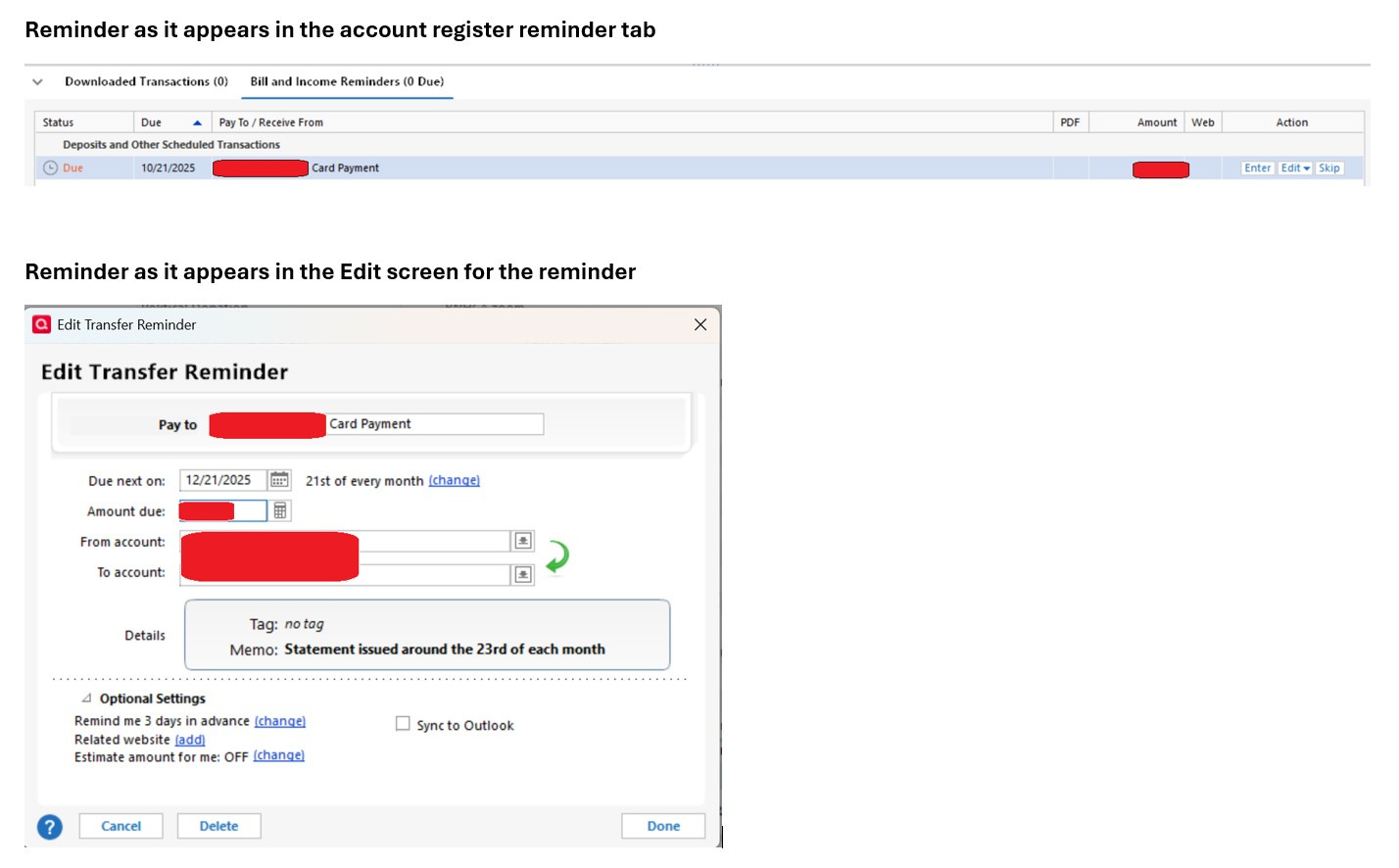
About a month ago reminders stopped working properly. Specifically, Reminders for some transactions wouldn't appropriately move to the next date after the transaction is entered. Instead as this screenshot shows, this is happening:
- In the Reminder views (e.g. at the bottom of the account register), the Reminder still shows up with the current date (e.g. 10/21 for this example)
- When I open the Reminder for edit, it frequently doesn't show the current date (10/21), nor the next date (11/21), but rather the following date (12/21)
- If I manually edit the Reminder to the correct next date (11/21) it properly adjusts in the reminder views for a bit… but then later goes back to the behavior above
I've tried downloading and replacing the software. I've tried running Validate and Repair with all options turned on. I'm a bit out of ideas. I can't go back to a backup because I didn't notice this behavior until I did my monthly reminder checks and quite a bit of activity has happened, and in any case, I don't know when this behavior started exactly.
Comments
-
I'm a 25+ year user of Quicken Classic and honestly, it's getting harder to sustain. Mysterious issues keep coming up and not getting resolved.
I still can't reconcile split transactions as per this ticket:
And the Paycheck reminders are still borked as per this ticket:
Hopefully this Reminder issue can be resolved.
0 -
By the way, I've most recently been on R64.30. Upgrading to R64.35 now, we'll see if the problem goes away.
0 -
Upgrading to R64.35 did not make the problem go away.
0 -
Hello @Ted P,
Thank you for sharing your experience, though I am sorry for the issues that seem to be stacking up for you.
Can you answer a couple of quick questions to help me determine the next best steps?
- Where is your data file located?
- Is your file being synced/backed up by any third-party services like OneDrive, Carbonite, Dropbox?
- When you run your validation, does it come back with any errors or mention any damage?
Looking forward to your response!
Quicken Alyssa
Make sure to sign up for the email digest to see a round up of your top posts.
0 -
Thanks for the reply. Addressing the questions:
- Where is your data file located? On my PC hard drive (C:\Users\<user name> \OneDrive\Documents\Quicken\Current Data)
- Is your file being synced/backed up by any third-party services like OneDrive, Carbonite, Dropbox? Backups are stored on DropBox
- When you run your validation, does it come back with any errors or mention any damage? Just reran it. It says 'QEL: No read errors.' and 'QEL: All internal consistency checks passed.' It says '5 scheduled transactions corrected' but none of the 5 are the ones that have been giving problems with reminders
Also of note:
- When I first opened Quicken today, the reminders were all correctly in the future. But after I ran OneStepUpdate, some of the reminders came forward incorrectly
- I had deleted & recreated one of 4 similar reminders yesterday. After the OneStepUpdate, the 3 I didn't deleted incorrectly came forward, but the one I deleted/recreated didn't come forward. Based on that today I deleted / recreated the other three. I'll see if those stay 'correct' and also I'll keep deleting / recreating ones that have this issue. Maybe over time that will solve the problem.
0 -
Thank you for following up!
Can you please move your file off of OneDrive and back to the default location? The default file path is C:>Users>your username>Documents>Quicken. This is where we recommend keeping your data file. We also recommend excluding it from any third-party syncs/backups. You can save backups to a cloud, but using your file while it is stored on a cloud and allowing third-party services to access the file can cause damage to the file.
Once you have moved the file, please validate it.
To do this:
- Go to File.
- Select Validate and Repair file…
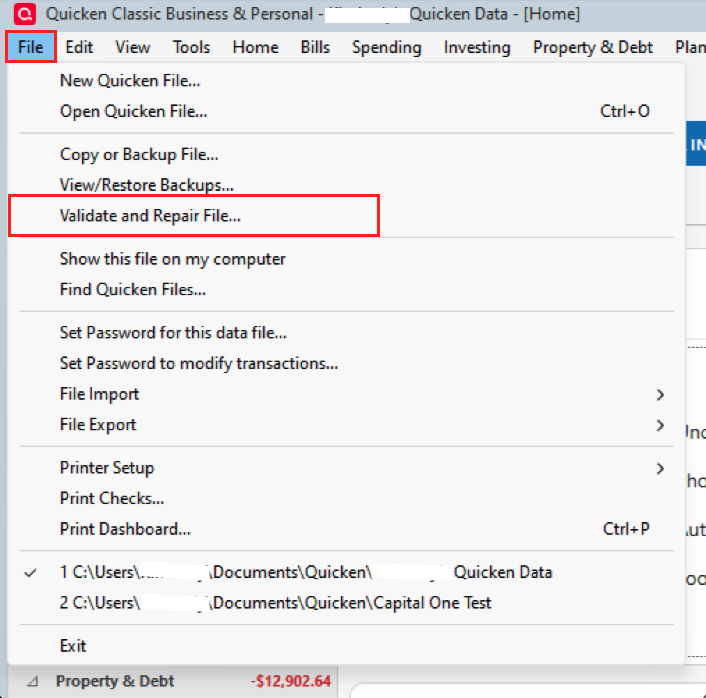
- Check the first box for Validate file.
- Click Ok.
Once that is done, keep an eye out to see if you are having the same issues with reminders, and let me know how it goes.
Thank you!
Quicken Alyssa
Make sure to sign up for the email digest to see a round up of your top posts.
0 -
The local OneDrive Documents folder is the default location where Quicken installs the Quicken data file folder. It is also the default Documents folder used by Windows. The recommendation is outdated and if Quicken developers still believe it, they should change the default location for the Quicken data folder that the program is using during a new installation.
3 -
As an update… It looks like manually deleting and recreating the individual reminders is working. I’ll just keep doing that as the “legacy reminders” run into issues.
Partly because of that, I’m not going to try to sort out Microsoft’s OneDrive setting. As Markus said Quicken itself uses it now. Beyond that, nothing changed with it in the last few months so I don’t see how that would have broken the legacy reminders.
0 -
Thank you for following up to let me know that deleting and recreating the reminders worked to resolve the issue.
If you need further assistance, don't hesitate to reach out.
Thank you!
Quicken Alyssa
Make sure to sign up for the email digest to see a round up of your top posts.
0 -
thanks. I think it makes sense for me to keep this post open through end of November as I go through the full cycle, that should see if the delete-and-recreate really works.
0 -
I literally watched my reminders disappear and scramble this morning as I did an accounts update. I'm losing faith in the software.
0 -
Do you have the Sync option at Edit > Preferences > Mobile and Web enabled? There have been reports that this scrambles split transactions, including paychecks.
If you don't use the mobile apps or Quicken on the Web, you can safely turn this off (slider to the left).
If you do use the mobile or web features, you can turn it off to see if that stops new occurrences of the problem, and if so decide whether you want to leave it off while Quicken fixes it.
Please let us know what you find.
QWin Premier subscription0