is there an error importing .csv investment file into a brokerage account

If I import a dividend with the value 26.18 Quicken enters it as 26.17. If I import the value as 26.1800000001 Quicken enters it correctly as 26.18. Is there a roundoff/truncation problem in Quicken. This happened with about half of the last 60 investment transactions I imported with the .csv "file, file import, investment transactions, from (.csv) file…". The .csv file was created in EXCEL and the "amount" was set to "number" with 2, 4, or 10 decimal places with the same result. Is this a problem with EXCEL's representation of a "number" or within Quicken's import.
Best Answers
-
A computer using standard binary floating-point arithmetic cannot represent the number 26.18 exactly.
I'd guess the Excel program has a lot going on behind the scenes to try and massage numbers to ones that puny humans will understand. That not be the case with Quicken, particularly with the import aspect in mind.
2 -
Bad programming on the Quicken Inc developer's part.
Yes, the reason for it changing between 26.18 and 26.17 is because you can't represent 26.18 in binary exactly, but a programmer should understand this limitation and properly round the number. BTW is why you have settings like saying what to round to. Given that the most digits Quicken supports is 8 after the decimal point, they should have rounded to that (or 6 if selected), instead they truncated the value.
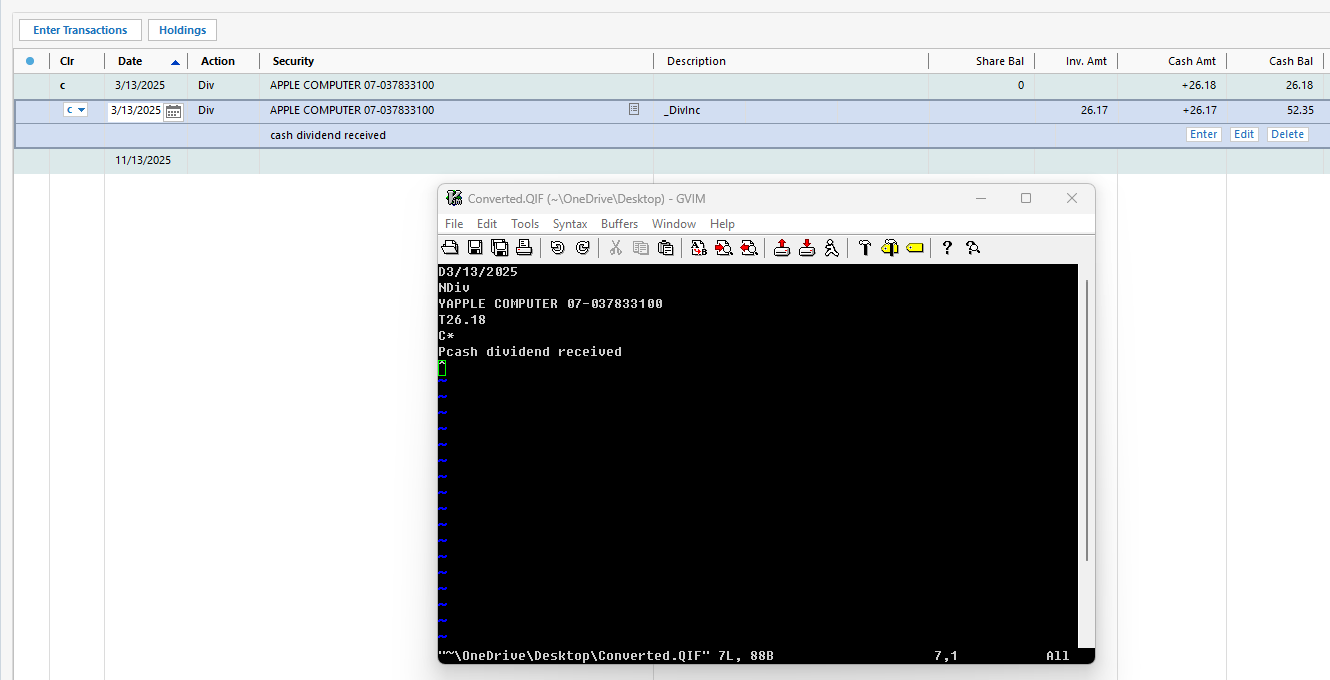
Note that importing with QIF doesn't have this problem.
First one in the register is QIF, the second is the one with the Quicken QIF import.
 1
1 -
This is apparently a case where Quicken is truncating a 64 bit floating point number to 2 decimal places rather than rounding. Take a look at this online calculator:
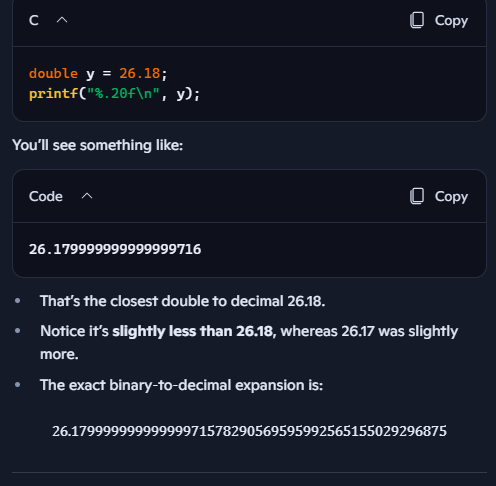
If you enter 26.18, the 64 bit binary equivalent when converted back to decimal is 26.17 followed by a long string of 9s. If you enter 26.1800000001, the result is 26.18 followed by a long string of zeros.
Since Quicken added the CSV import recently, the code should be "fresh" and thus this should be an easy fix.
QWin Premier subscription1 -
For reference:
 1
1 -
@K123 and others experiencing this problem please use the link at Help > Report a Problem to report this issue and reference this discussion. Please attach a copy of your CSV file and a screen shot of the result of the import. Because there is a limit of 10 attachments, you may need to un-check the log files with "Old" in their names.
The more reports they get the better.
QWin Premier subscription0 -
@benjamin123 a CSV file isn't an "Excel file". It is a text-based file. You can open it in Notepad and see the numbers.
What they describe to you is happening, but it is happening in Quicken and for the same reason. But the point is that any first-year programmer should understand that floating point numbers stored in a computer might not be exact and therefore they need to round the numbers, not truncate them.
1


Answers
-
A computer using standard binary floating-point arithmetic cannot represent the number 26.18 exactly.
I'd guess the Excel program has a lot going on behind the scenes to try and massage numbers to ones that puny humans will understand. That not be the case with Quicken, particularly with the import aspect in mind.
2 -
I was struggling how to explain this phenomenon in simple terms, knowing that this happens. You took the words right out of my mouth @Tom Young (not). A very succinct explanation and well done.👏
- Q Win Deluxe user since 2010, US Subscription
- I don't use Cloud Sync, Mobile & Web, Bill Pay0 -
Bad programming on the Quicken Inc developer's part.
Yes, the reason for it changing between 26.18 and 26.17 is because you can't represent 26.18 in binary exactly, but a programmer should understand this limitation and properly round the number. BTW is why you have settings like saying what to round to. Given that the most digits Quicken supports is 8 after the decimal point, they should have rounded to that (or 6 if selected), instead they truncated the value.
Note that importing with QIF doesn't have this problem.
First one in the register is QIF, the second is the one with the Quicken QIF import.
1 -
This is apparently a case where Quicken is truncating a 64 bit floating point number to 2 decimal places rather than rounding. Take a look at this online calculator:
If you enter 26.18, the 64 bit binary equivalent when converted back to decimal is 26.17 followed by a long string of 9s. If you enter 26.1800000001, the result is 26.18 followed by a long string of zeros.
Since Quicken added the CSV import recently, the code should be "fresh" and thus this should be an easy fix.
QWin Premier subscription1 -
For reference:
1 -
I'm seeing the same issues. I am excited to see Quicken finally add this functionality, but it's unusable in its current state since almost all transactions wind up being imported as $0.01 off. I've also noticed on some transactions it will bring the share quantity over as the total amount (so it looked like I had sold 1 share of Microsoft stock for $1.00). They are moving in the right direction, but more work to do until this is actually helpful. Had to go manually adjust/verify every transaction which defeats the purpose.
0 -
@K123 and others experiencing this problem please use the link at Help > Report a Problem to report this issue and reference this discussion. Please attach a copy of your CSV file and a screen shot of the result of the import. Because there is a limit of 10 attachments, you may need to un-check the log files with "Old" in their names.
The more reports they get the better.
QWin Premier subscription0 -
here is a response from microsoft that MAY solve the problem until quicken gets it's act together. i haven't explored it yet, but i'm hopeful
In Excel, numbers are represented using a format called binary floating-point notation, which is based on the IEEE 754 specification. This means that numbers are stored in a binary format that can sometimes lead to precision issues due to the way certain decimal numbers are converted into binary.
For example, the decimal fraction 0.1 cannot be represented exactly in binary, leading to a small rounding error when it is stored. This is because 0.1 in binary becomes a repeating binary fraction, which cannot be stored in a finite amount of space. As a result, when you perform calculations involving these numbers, the inaccuracies can propagate, leading to results that may differ slightly from what you expect.
When you import numbers from Excel into another application like Quicken, these small inaccuracies can manifest as truncation or rounding errors, which might explain why you are seeing numbers that are off by a penny. The specific representation of a number in Excel can sometimes be slightly different from what is displayed in the user interface, as seen in the case where 0.049 is stored as 0.049000000000000002 in the underlying data.
To mitigate these issues, Excel provides an option called "Precision as displayed," which forces Excel to store numbers as they are displayed in the worksheet. However, using this option can lead to loss of precision, so it should be used with caution.
Understanding these nuances in how Excel stores and calculates numbers can help you better manage the data when importing into other software like Quicken.
0 -
@benjamin123 a CSV file isn't an "Excel file". It is a text-based file. You can open it in Notepad and see the numbers.
What they describe to you is happening, but it is happening in Quicken and for the same reason. But the point is that any first-year programmer should understand that floating point numbers stored in a computer might not be exact and therefore they need to round the numbers, not truncate them.
1 -
thanks, i found the above tip to be useless in solving this problem. i hope quicken gets their act together soon to fix the truncate/roundoff. otherwise importing .csv into quicken works well once the .csv file is arranged properly and dollars are all converted to abs(numbers). I have found it best to import stock tickers only and NOT stock names since quicken needs exact matches of names and my broker typically differs somewhat.
0 -
I don't know why the Abs() function in Excel would correct the rounding vs truncating issue, because that just converts negative numbers to positive ones.
But in the other thread on this topic, I suggested that you may be able to disguise this bug by adding $0.00499999 to the amounts before importing, essentially pushing amounts that are just less then an even penny to be over a penny so that they will be correct after truncating.
If you try this, please let us know if that works for you.
QWin Premier subscription0 -
I am experiencing this problem as well. When I imported the following:

my Cash Amt in the register came up a penny short.

Based on the above suggestion, I changed my amount value to 153.89499999 and did the import. The result was that the Cash Amt was the 153.89 that it was suppose to be. I also tried changing the amount to 153.00499999 and redid the import. The Cash Amt was 153.00. At least there seems to be a workaround for this opportunity.
0 -
Hello All,
Thank you for letting us know about this issue. I was able to replicate the problem in my Quicken as well, and have forwarded it to the proper channels for further investigation and resolution. If you haven't already done so, we request that you please navigate to Help > Report a problem and submit a problem report with log files attached in order to contribute to the investigation.
While you will not receive a response through this submission, these reports will help our teams in further investigating the issue. The more problem reports we receive, the better.
We apologize for any inconvenience!
Thank you.
(CTP-15583)
Quicken Kristina
Make sure to sign up for the email digest to see a round up of your top posts.
0 -
One thing I don’t understand: when I open an imported transaction, all values are shown as fixed decimals (90% of the time) and the total is correct. If I make no changes and simply click Done, the Cash Amount corrects itself immediately. That suggests the calculation and rounding logic already works. Why isn’t that same normalization applied during the CSV import process?
Some transaction the fee is imported wrong too. imports as .02 when it's .03
When will quicken fix?
Thanks0 -
@Quicken Kristina: Can you share the timeline for a fix for this issue or at least an update?
0 -
Hello @K123,
Our teams do not give ETAs. The ticket is open and ongoing. There are no updates yet.
Thank you!
Quicken Kristina
Make sure to sign up for the email digest to see a round up of your top posts.
0 -
@Quicken Kristina This issue has been known and reproducible for over two months. As paying Quicken customers on an annual subscription—which includes access to customer support—it’s concerning that no estimated timeframe can be provided. Even a rough ETA or confirmation that a fix is scheduled would help set expectations and maintain confidence in the product. Additionally, given that my prior support tickets were closed without resolution despite reproducible evidence, what is the recommended escalation path for customers when standard support channels are not effective?
1 -
@ddavec and others, I share your frustration the Quicken is not working faster to resolve what appears to be a straightforward rounding issue. While we are waiting for a fix, have you tried the workaround referenced above?
In an earlier post, I suggested that you may be able to disguise this bug by adding $0.00499999 to the amounts before importing, essentially pushing amounts that are just less then an even penny to be over a penny so that they will be correct after truncating.
If you try this, please let us know if that works for you.
QWin Premier subscription0 -
@Jim_Harman - I understand the workaround in theory, but that’s where I struggle practically. With 50–100 transactions in a single trading day, how do you determine which transactions need the adjustment and which don’t? Some transactions import correctly, others are off by a penny, and fees can go either way. Applying a blanket offset risks introducing new inaccuracies. That’s why this really needs to be addressed in Quicken’s CSV import logic, so the same rounding and normalization applied on save is also applied during import.
Thanks0 -
Because this is a truncation error, you can always apply the offset. It will add a penny when needed and not affect the amount otherwise.
QWin Premier subscription0 -
For what it worth, adding 0.004999999999 is exactly how a rounding function would work in the program (what it is currently missing).
EDIT: actually, the more I think about it, it would add 0.005.
0.005(with anything after it) + 0.005 will be 0.01 when truncated to two decimal points.
0.004(with anything after it) + 0.005 will be 0.00 when truncated to two decimal points.
Not that I think it matters, since 0.004999999999 is so close to 0.005 that you would never encounter a value that doesn't have the same affect as 0.005.
2 -
I'm going to experiment do I add this to the price and or commission fee? Does this correct when the fee is not imported correctly?
Thanks
0 -
After four months of reported and reproducible CSV import rounding errors, today’s update still does not resolve the issue.
This impacts fundamental cash accuracy for investment accounts.
Is this fix currently scheduled, or has it been deprioritized? A clear status update would be appreciated.
0 -
The workaround adding 0.005 to simple dollar and cents amounts does work - as far as I can test it and only for now. I am only importing Treasury Bill transactions with whole cent amounts, and I am not sure what will happen when Quicken inserts a correction.
0 -
Another update today and no fix for the rounding. Why do we pay for a yearly subscription if you can't fix a simple rounding issue.
0