Incorrect Register Balances

I am using Quicken Classic for Windows, v R65.17. This is an annoying glitch that has been a bother for a long time (more than a year). I go to reconcile my bank account, proceeding from the prior reconciliation, and enter all transactions, matching the bank statement exactly. The resulting account balance is frequently incorrect. If I close the register and reopen it, the balance is correct. I haven't been able to figure out what causes this, perhaps entering from one month into the next? Found no consistency. Does anyone have this experience and if so, have you figured out what causes it and is there a fix? I have become frustrated enough with this silly problem to post it. Thanks
Comments
-
Hello @rtatar0766,
Thank you for sharing your experience and reporting the issues you are having.
I have some follow-up questions for you to hopefully help us narrow down what could be causing this.
- How are you opening Quicken when you use it?
- Do you use the red application icon?
- Or do you use an icon that looks like a sheet of paper with the corner folded down?
- What troubleshooting steps have you tried already, if any?
- Where is your data file located?
- Is your file being synced/backed up by any third-party services like OneDrive, Dropbox, or Carbonite?
Looking forward to your response!
Quicken Alyssa
Make sure to sign up for the email digest to see a round up of your top posts.
0 - How are you opening Quicken when you use it?
-
Thank you for responding so quickly.
I start Quicken from the red application icon.
I really haven't done any troubleshooting. Just have tried to find some consistency as to when it happens. It doesn't happen all the time. As I mentioned in my post yesterday, I thought it might have something with entering transactions for a date range that runs from one month into the next. I haven't seen a consistent reason.
The file is located on my PC
I periodically back up to a removable hard drive. The file also backs up to Quicken in the Cloud I believe.
Is this a known problem or am I the only one bringing it up?
Thanks
0 -
To answer the "where is your file located" question, @Quicken Alyssa is looking for the highlighted path in your File menu:
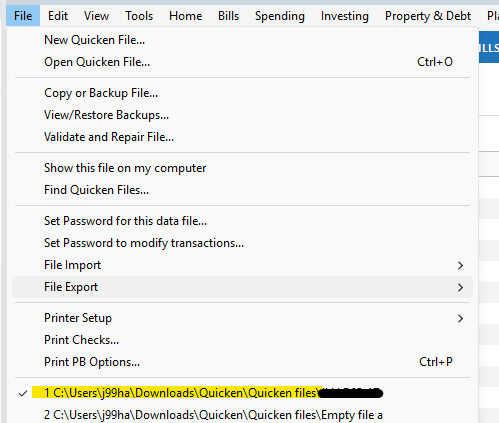
Having OneDrive or another cloud storage system in that path may cause problems.
QWin Premier subscription1 -
Thank you for following up with additional details.
This is currently not a known or widespread issue. As @Jim_Harman mentioned, I am looking for the file pathway. File location matters because some locations could potentially cause issues within a data file.
If your file is stored externally, I would suggest moving it to the default location, which is C:>Users>username>Documents>Quicken. Sometimes, just moving the file can clear up strange behaviors, and sometimes further troubleshooting is needed.
Let us know the pathway of your data file, and we can go from there!
I also wanted to clear up any confusion about the Quicken Cloud. It is not a backup service, and basically acts as a highway between the Quicken desktop application and Quicken Mobile & Web. It allows you to view your accounts on Quicken on the Web and the mobile applications.
Looking forward to your response!
Quicken Alyssa
Make sure to sign up for the email digest to see a round up of your top posts.
0 -
Thank you, here is the file path C:\users\rtata\OneDrive\documents\Quicken\file
Thank you for clearing up Quicken Cloud use
0 -
Hello @rtatar0766,
Thanks for providing the file path as requested by @Quicken Alyssa. I see that your Quicken file is located in your OneDrive folder. Even though the file is in the default Quicken folder structure, syncing the file through OneDrive while Quicken is running can sometimes cause issues like the incorrect register balances you’re seeing.
To help rule this out, I recommend turning off OneDrive syncing specifically for the folder where your Quicken file is stored. Make sure Quicken is completely closed before doing this. Once syncing is turned off, reopen Quicken and see if the issue persists.
Let us know how it goes!
-Quicken Anja
Make sure to sign up for the email digest to see a round up of your top posts.0 -
As an alternative to turning off OneDrive, you can move your Q data file to a folder as @Quicken Alyssa recommended above (without OneDrive in the path) and direct your BACKUPS to the OneDrive folder.
Storing your actual Q data file in OneDrive has been implicated in the past with several problems.
Q user since February, 1990. DOS Version 4
Now running Quicken Windows Subscription, Business & Personal
Retired "Certified Information Systems Auditor" & Bank Audit VP1 -
Thanks @NotACPA—that’s a great alternative suggestion!
-Quicken Anja
Make sure to sign up for the email digest to see a round up of your top posts.0 -
Thank you for your help. I moved the file so hopefully that will resolve the problem. Merry Christmas!
0 -
@rtatar0766 Thank you for the update, and I’m glad to hear you were able to move the file.
If you notice anything further, please don’t hesitate to reach back out.
Merry Christmas to you as well! 🎄
-Quicken Anja
Make sure to sign up for the email digest to see a round up of your top posts.0



