Bill Pay Screen Corruption

I don't know when this started, but it's made this area very hard to use over time. I don't use the online billing system any longer due to all the issues, but I do use the screen occasionally to look at upcoming and paid bills. And eventually, no matter what I do, the screen will become corrupted and look like some version of this:
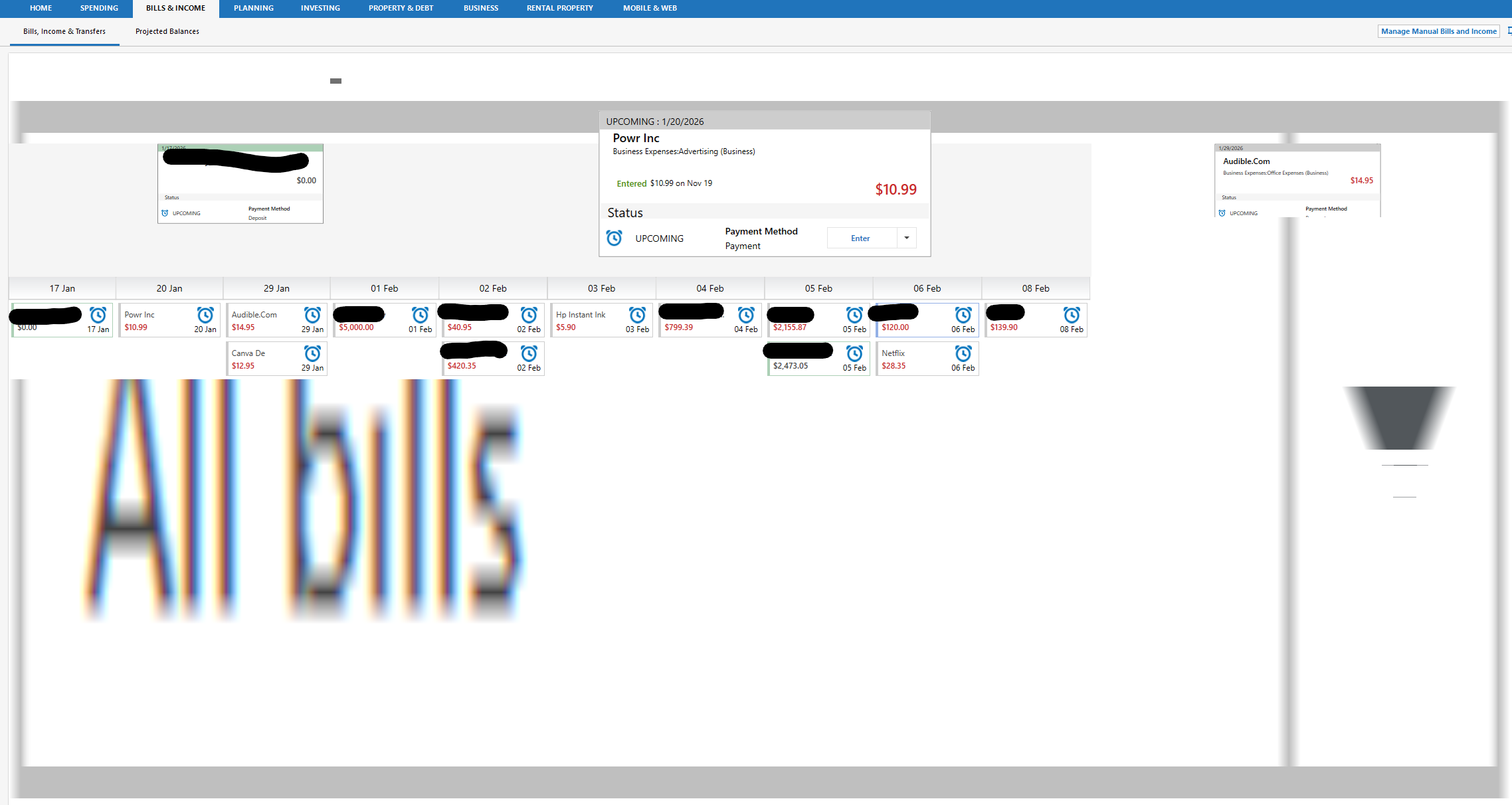
And it gets worse if I toggle. Here I clicked projected balances and then back and it got even worse:
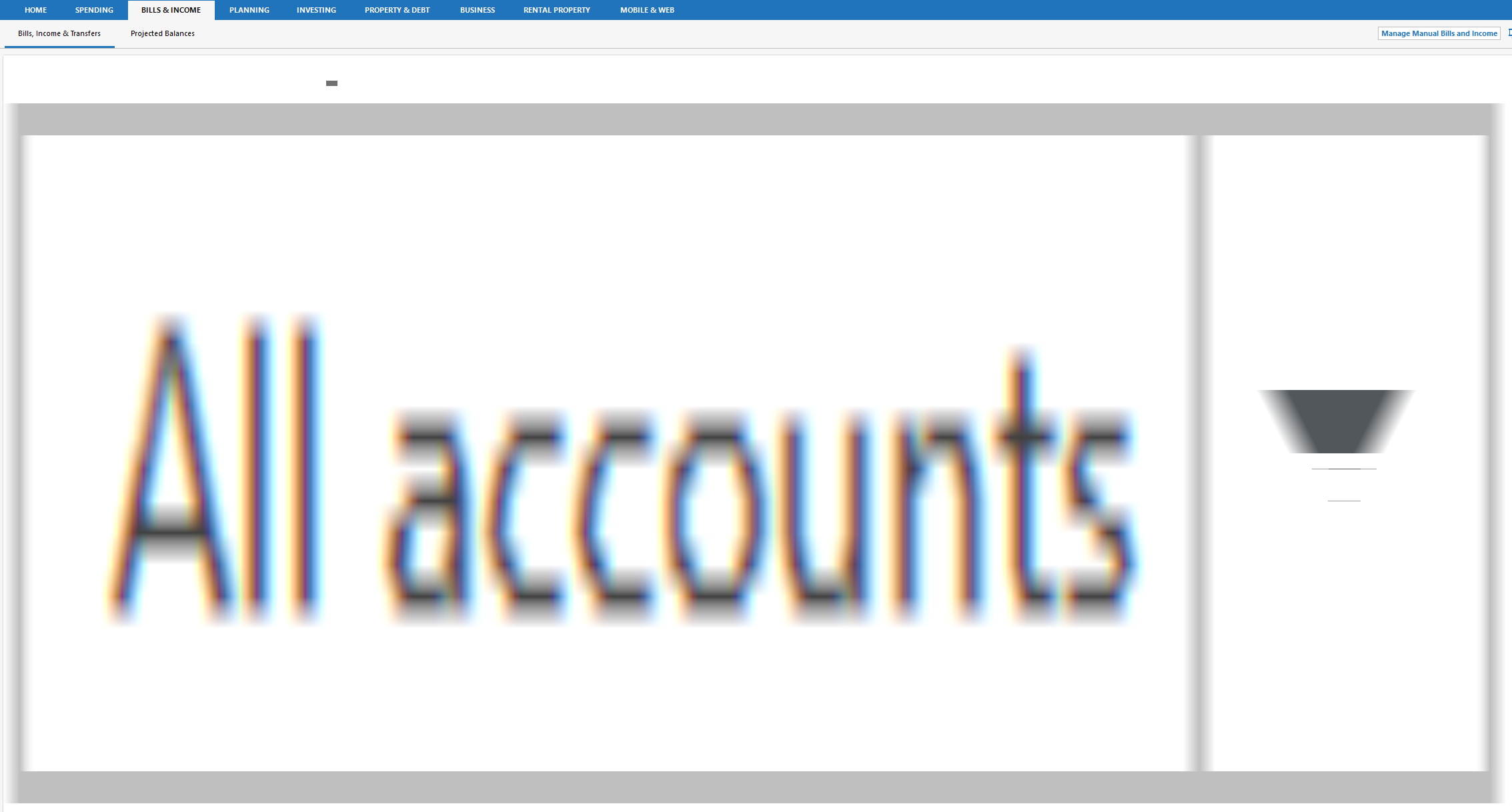
Clicking to SPENDING and then back restores the screen to the right view. But then clicking Projected Balances and then back to Bill, Income & Transfers results in a slighty different distorted version of the second picture.
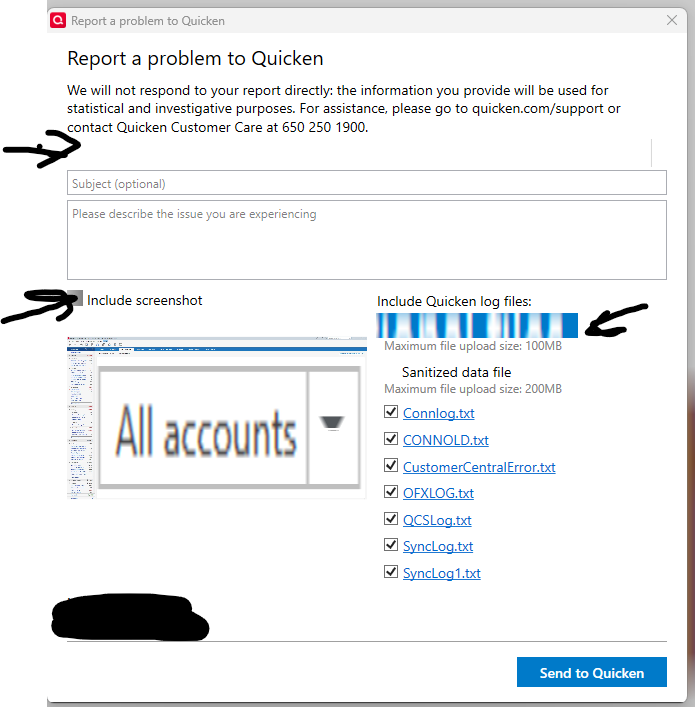
I see similar in certain cases on the main dashboard screen, and now I'm starting to see UI corruption as well in the 'Report a problem to Quicken' dialogues as well.
Comments
-
Hello @Michael Jones,
Thank you for sharing a detailed account of your experience.
I am unable to recreate this in my own Quicken. I have some follow-up questions for you.
- Where is your data file located?
- Is your file being synced/backed up by any third-party services like OneDrive, Dropbox, or Carbonite?
One thing we can try is validating your file. This can help to clear out/repair any corruption.
To do this:
- Save a backup.
- Go to File.
- Select Validate and Repair file…
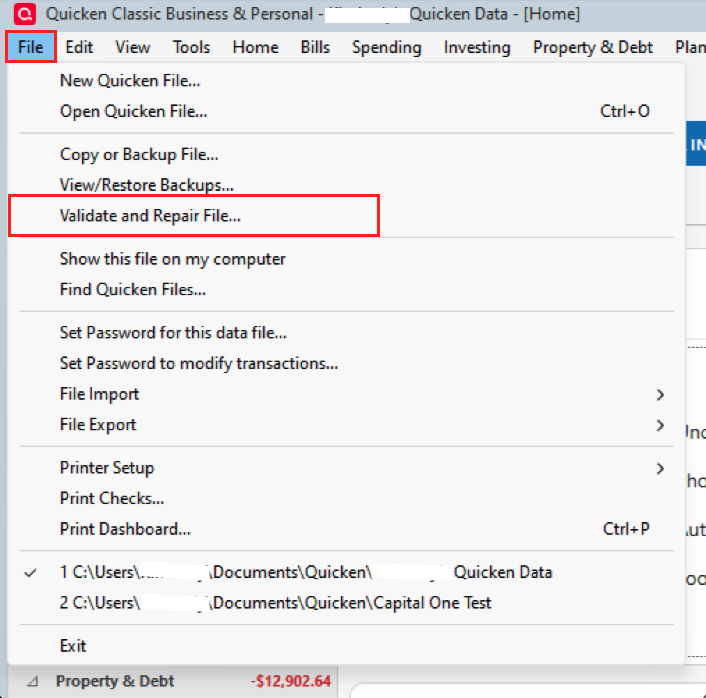
- Check the first box for Validate file.
- Click Ok.
Once the validation has completed, it will produce a report of anything it has found/corrected. After this, close Quicken for a few seconds and reopen it. See if you are still having display issues and let us know.
Thank you.
Quicken Alyssa
Make sure to sign up for the email digest to see a round up of your top posts.
0 -
If you haven't done so already, I would take a close look at Windows Display drivers and if there are any outstanding updates, available directly from the manufacturer. The drivers that come with the original Windows installation materials may not be up to date.
1 -
It's stored in a local directory. Validate passes with no issues. @Quicken Alyssa I also submitted this via a bug report, so all should have everything though my sanitized data file is too big to upload.
I'm using the latest approved, WHQL drivers. Windows 11, latest edition, on a relatively new computer (i13600k CPU). This is running full screen on one monitor of a dual 27" monitor setup; however, both monitors are at their native 2k resolution. Scaling is set at 100%.
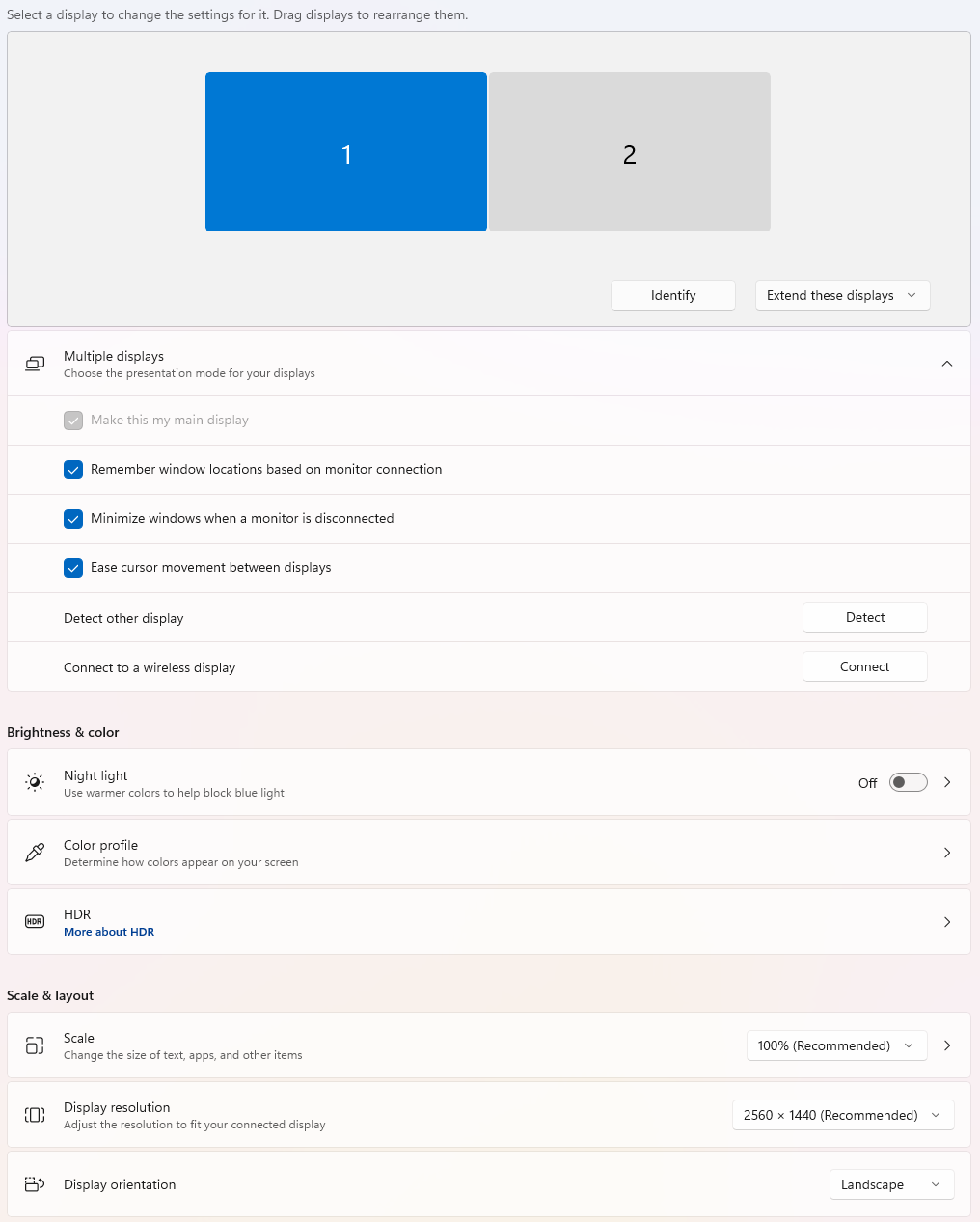
I did try running it in a windowed mode just to see if that made any difference. At first, that didn't change anything. However, going from full screen to windowed does seem to fix it. I can sometime corrupt it again, but toggling to full screen again fixes it on the first try.
It looks like Quicken is being forced to repaint the entire screen when it does that to provide for the scroll at the bottom. Might be something with high resolution, multi-monitor setups?
I don't know that it's the same thing happening on the Dashboard or the Report a Problem dialog noted above.
0 -
Thank you for following up.
I, too, am using multiple monitors with high resolution, and I do not see the same issue on my end.
To test your theory, can you try using Quicken with a single monitor setup to see if the issue still occurs? This may help us narrow down the root cause of this issue.
Let us know what you find!
Quicken Alyssa
Make sure to sign up for the email digest to see a round up of your top posts.
0 -
Let me see if I can do that. I can also send you a sanitized version of my data file as well if that would help with any troubleshooting.
1 -
Thank you for following up!
It can't hurt; you can send it over if you would like. I look forward to hearing your findings.
Thanks again!
Quicken Alyssa
Make sure to sign up for the email digest to see a round up of your top posts.
0 -
@Quicken Alyssa Apologies this took me a bit to get back too.
I did try it on another computer in the house, a laptop my wife uses. The computer has a high resolution internal panel plus a 2k external monitor and an older NVidia mobile graphics card. On that computer, using my production file or any other backup the distortion does not happen.
So I came back to my main computer, made sure all the drivers were up to date, completely deleted Quicken (included all the AppData, program files folder, etc.), rebooted, and reinstalled. On this computer, which is a more modern Nvidia 4070, I still get screen corruption in either my old files or in a brand new empty one. I get it whether I'm running a 2k native an 100% scaling or 1080p and 100% scaling.
Here are some samples of dashboard corruption in both my file and an empty one. You will see all the drop shadows are gone and instead I get big white squares. The billing screen and many others still have the distorted graphics or disappear completely when I hover over them.
Running the beta code on the same machine in a windows virtual machine does not exhibit these issues.
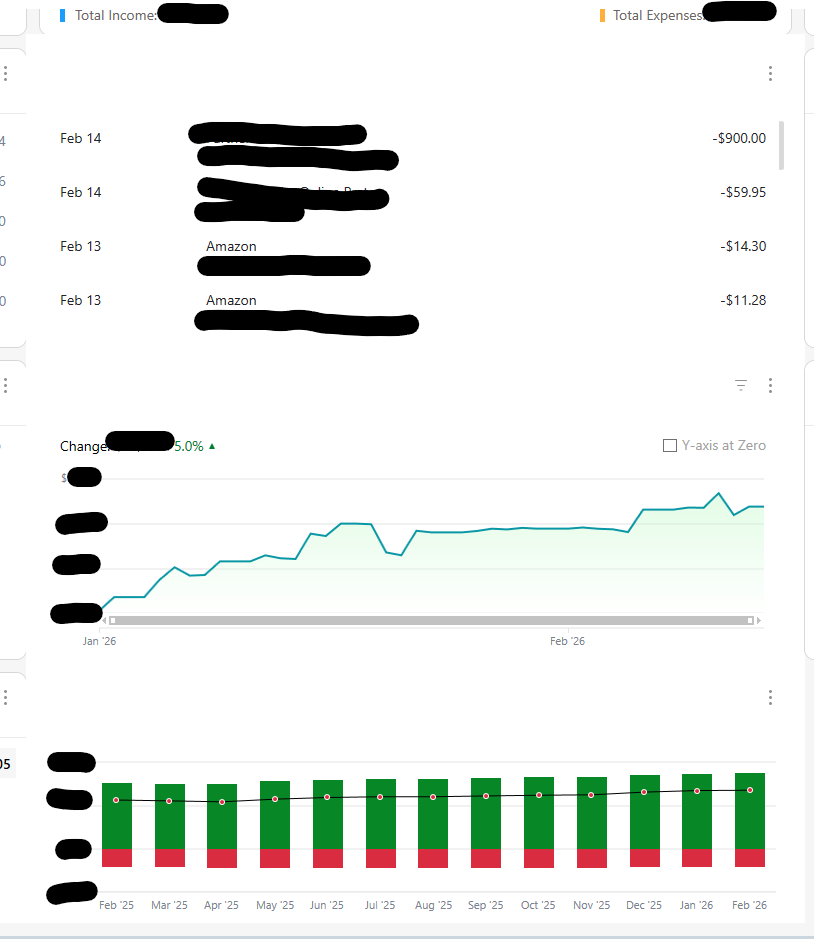
Empty file:
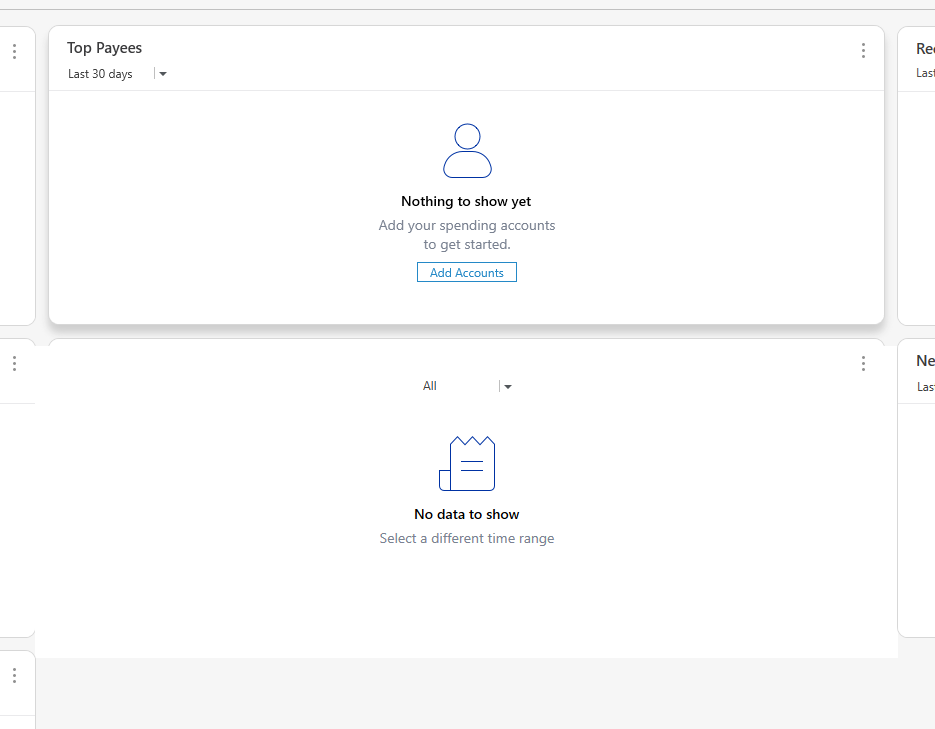 0
0 -
Thank you for following up.
A couple of new updates have been released. Are you still seeing this issue? If so, can you tell me what the refresh rate is on your computer? To check this on Windows 11, right-click on the desktop. Select display settings.
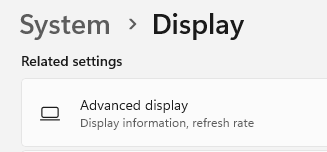
Scroll down to Advanced Display. Refresh rate is listed there.

Also, can you please try opening a new, non-beta, test file to see if the issue exists there as well?
Looking forward to your response!
Quicken Alyssa
Make sure to sign up for the email digest to see a round up of your top posts.
0 -
@Quicken Alyssa Thanks for getting back to me. I have installed the latest update (now on R66.23).
Yes, it still happens in my production file. It also happens in a perfectly empty file, at least on the dashboard. See a picture of that below for the dashboard and on the bill setup screen.
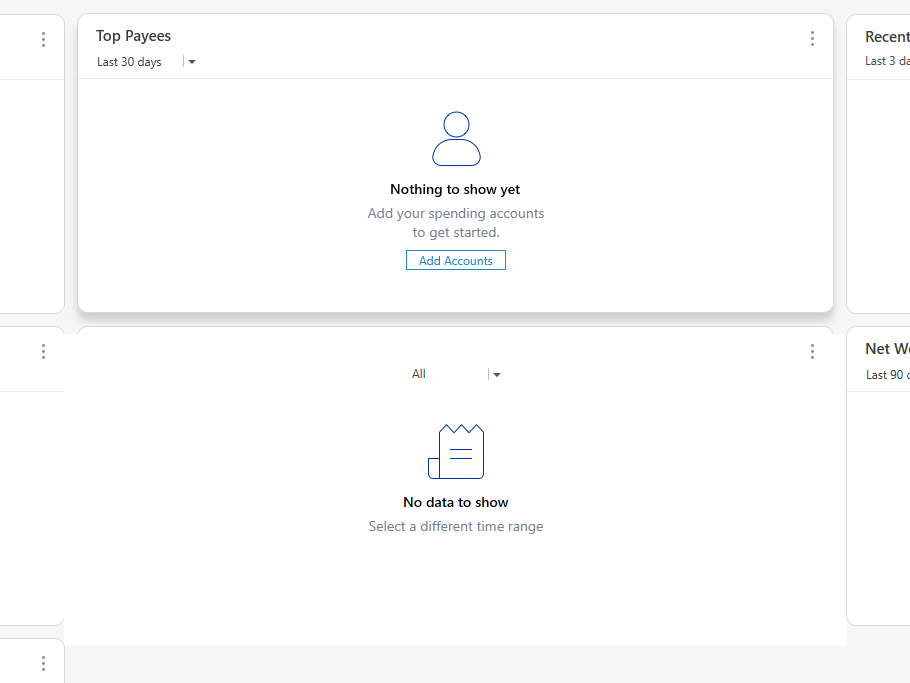
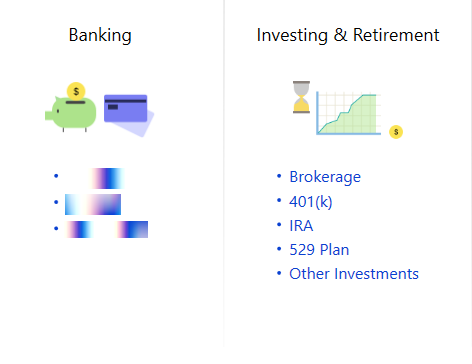
My display is currently running at 74.97Hz. I tried changing it to 59.95Hz, but see no difference.
 0
0 -
Thank you for getting back to me on that portion.
I have something else we can try. You will right-click on the Quicken icon on your desktop, select Properties, then Compatibility. Uncheck the option "Run in 640 x 480 screen resolution."
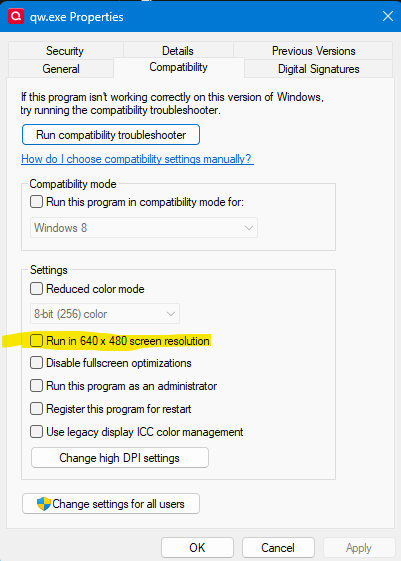
Let me know if this makes any difference.
Quicken Alyssa
Make sure to sign up for the email digest to see a round up of your top posts.
0 -
@Quicken Alyssa None of those boxes are checked for me.
 0
0 -
Thanks for trying that.
I am going to go ahead and create a ticket for this issue. If you could go to Help>Report a problem>Send to Quicken, to send over log files, we can get this submitted once we have those.
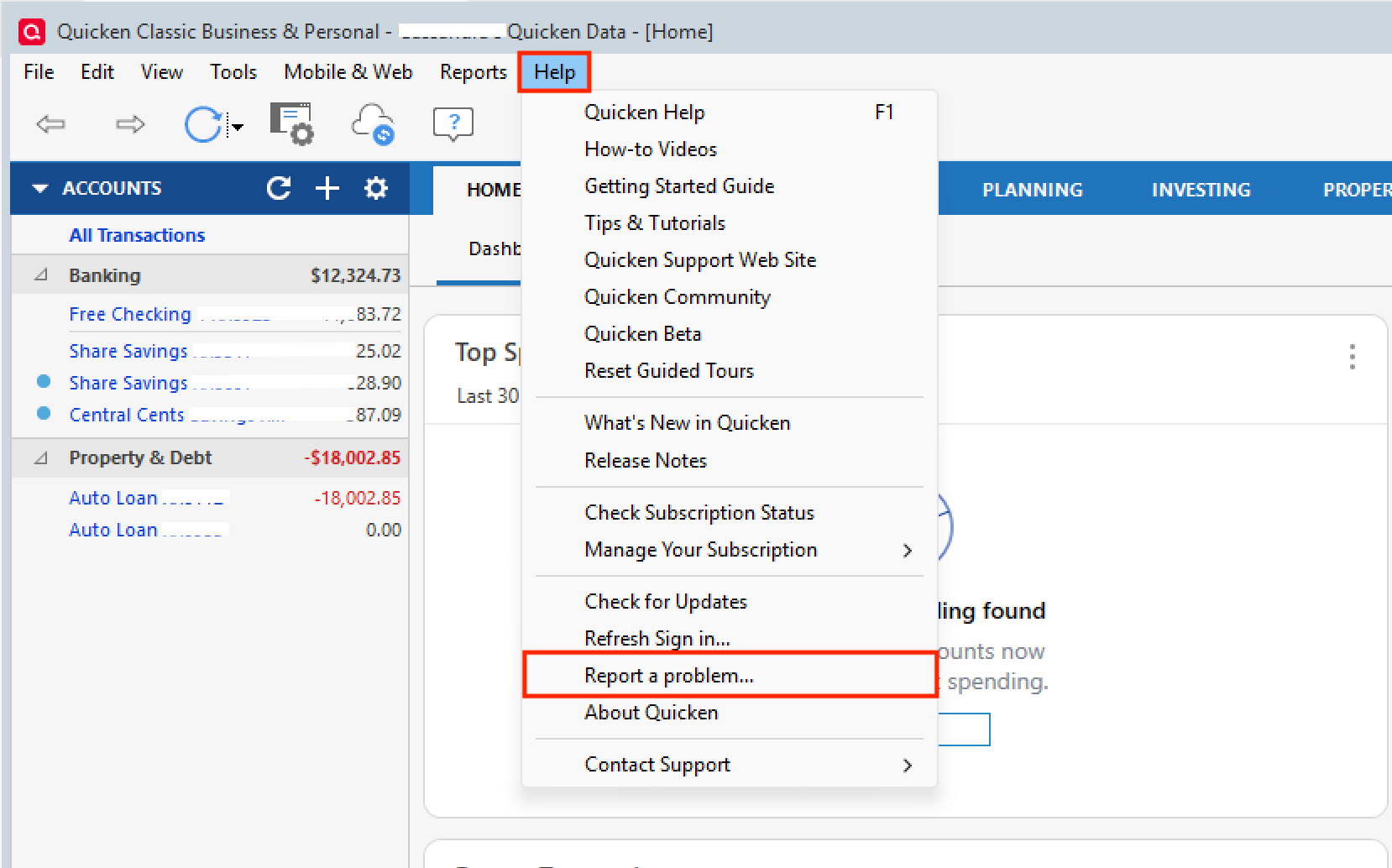
Let us know once you have sent them so we can get them added.
Thank you!
(CBT-1074/CTP-16629)Quicken Alyssa
Make sure to sign up for the email digest to see a round up of your top posts.
0 -
@Quicken Alyssa my sanitized data file for production will be too big to upload. Do you need a copy of that as well or just the log files themselves?
I sent it just now with some additional screen captures with this thread in the subject (without the data file copy, since for me it seems to happen in any file)
0 -
I have experienced this issue for several years. It occurs predominantly on the Bills screen within the Bills & Income tab, whereas the Income & Transfers screen works correctly. It appears that the Income & Transfers screen was either recently added or rewritten; if Quicken applied a similar update to the Bills screen, it would likely resolve the issue. Although I’ve noticed this for a long time, I am just now reporting it. I look forward to a resolution. Thanks!
1 -
Hello @Michael Jones & @jtfennig,
Thank you both for the additional information.
@Michael Jones, that's perfectly okay if you're unable to include the sanitized data file for now. While it can be helpful in some cases, it is not required at this stage. The log files and screenshots you submitted are appreciated. If our teams later determine that the sanitized data file would be useful for further investigation, we can coordinate another way to collect it at that time.
@jtfennig, thank you for chiming in and providing additional context about your experience with this issue. If you haven't done so already, please navigate to Help > Report a Problem and submit a report with your log files as outlined above by @Quicken Alyssa. This will allow us to add your details and files to the existing ticket to aid the investigation.
We appreciate your help with this!
-Quicken Anja
Make sure to sign up for the email digest to see a round up of your top posts.0 -
I just submitted the report. Thanks for your help with this issue!
1 -
Thanks for submitted! Your details and files will be added to the ticket.
However, it looks like you may be using a different email for your Quicken ID than you are for your Community profile. I have sent you a direct message, please navigate to the inbox in the top right-hand corner of the Community page and check your inbox.

Thank you!
-Quicken Anja
Make sure to sign up for the email digest to see a round up of your top posts.0 -
@jtfennig please disregard the above, it was my system that disconnected—my apologies. I was able to retrieve the files and have added them to the ticket.
Thank you!
-Quicken Anja
Make sure to sign up for the email digest to see a round up of your top posts.1 -
I will keep hoping this gets fixed. I created a new file over the weekend to start tracking my dad's finances and the amount of screen distortion in every new dialogue box (account sync setup and mapping, transactions, dashboards, etc.) honestly made the product almost unusable. I had to close and reopen the program multiple times to get even simple things to work and a ton of problems in investment registers with transactions not showing up until I left the file and came back to it.
0 -
@Michael Jones Thanks for the update and for sharing all the details. I understand how frustrating this is, especially when it affects new files as well. The ticket remains open for investigation and is actively being worked. We’ll update here as soon as we have more info.
Thank you!
-Quicken Anja
Make sure to sign up for the email digest to see a round up of your top posts.0 -
@Quicken Anja @Quicken Alyssa I need to use it more, but whatever changes there were in March R66.23 HF3 or HF4 appear to MAYBE have fixed the issue.
EDIT: Well, that was short-lived. I knew it was too good to be true. :) This morning, when I restarted Quicken, it's back to doing what it was. So false alarm! (sadly)
0 -
@Michael Jones Thank you for the update, and I appreciate you confirming that the issue returned after restarting. That detail is very helpful for the investigation.
We’ll share any updates here as soon as more information becomes available.
Thank you for your continued patience!
-Quicken Anja
Make sure to sign up for the email digest to see a round up of your top posts.0


