QFX files are not importing

Answers
-
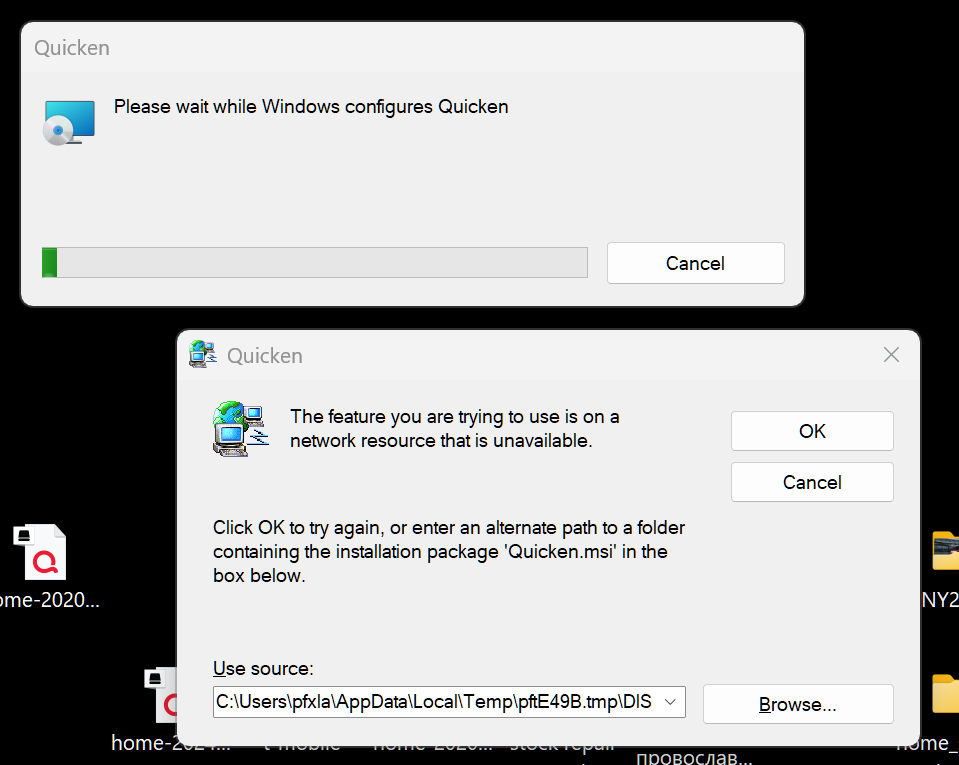
HOW did you get this file? From what bank? "Quicken.msi" is an install file, not a QFX.
Because the path you're showing in the 2nd graphic doesn't look anything like where a QFX would be saved … it looks more like the path to a program install file (but I can't be sure since you don't show the full file name).
Also, saving any Q files on a networked resource is a hit-or-miss proposition, because Q doesn't possess the coding necessary to safely process networked files. A single hiccup, while accessing such, can fry your program or data.
Q user since February, 1990. DOS Version 4
Now running Quicken Windows Subscription, Business & Personal
Retired "Certified Information Systems Auditor" & Bank Audit VP0 -
Hello @pauel,
Thank you for reaching out! To clarify, are you seeing that error when you try to import a QFX file you downloaded directly from your financial institution?
If you are, then you will need to uninstall and reinstall Quicken to correct the issue.
To uninstall Quicken, please backup your file, then follow these steps from our article on uninstalling Quicken:
Windows 11
1. Click the Start button and select Settings (gear icon).

2. Select Apps from the settings list, then click Installed apps.
3. In the Installed apps list, scroll down to Quicken, click the three dots menu, then select Uninstall.
4. Click on Uninstall again to confirm and follow through the prompts until the program is removed.
Windows 10
1. Click the Start button and select the Control Panel. In Windows 10, the Control Panel is located in the Windows System folder in the Start menu.
2. Under Programs, click on Uninstall a Program.
3. Find Quicken in the list of programs. They are alphabetically ordered. Highlight it by clicking on it once.
4. Click on Uninstall at the top of the list and follow through the prompts until the program is removed.
To install Quicken, please use the article linked below to download the current version of Quicken:
Once it finishes downloading, click Run to begin.
Follow these steps from the article on downloading and installing Quicken to install the program:
Install Quicken
- Follow the on-screen instructions to complete the installation.
- Click Next to get started.
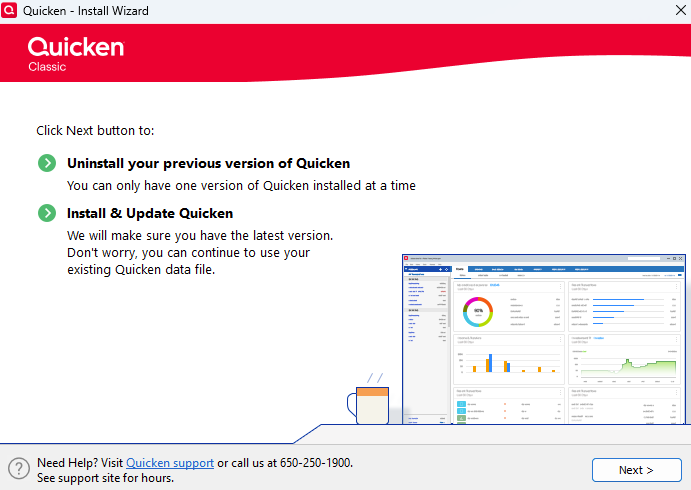
- Click Install on the Ready to install prompt.
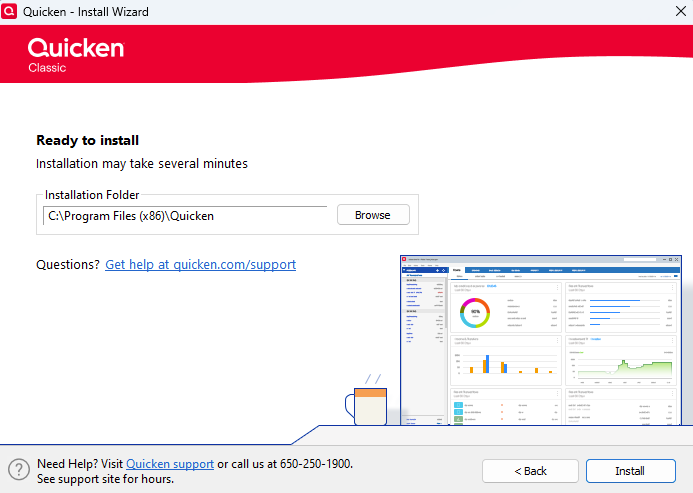
- When the installation is complete, click Done.
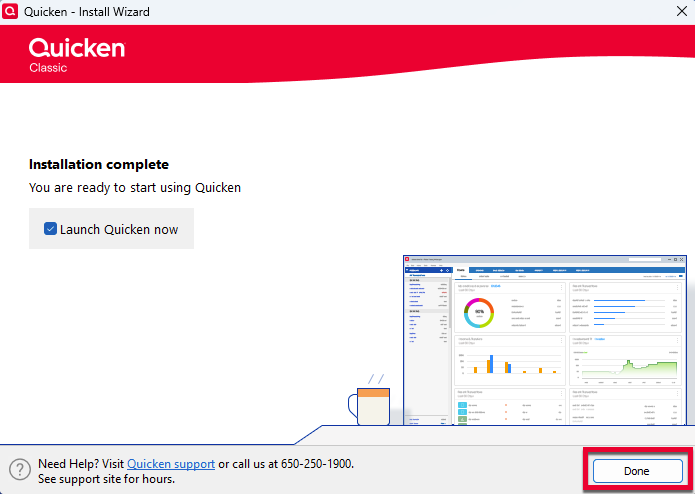
- Click Next to get started.
- Enter your Quicken ID and Password.
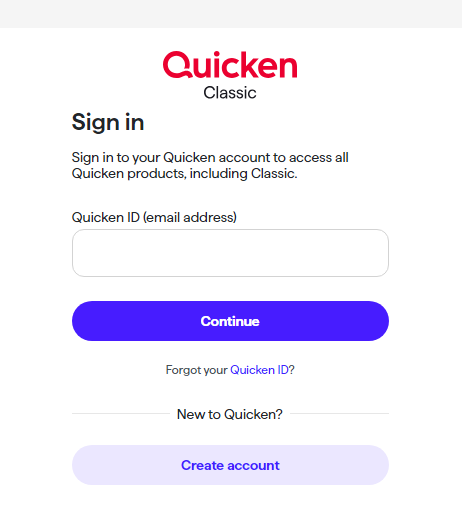
- If prompted, enter the 6-digit code. This process verifies your information and helps keep your account safe.
- Enter your Activation Code if you're prompted for one. An Activation Code is only necessary when Quicken is purchased from a retail store. You can find your Activation Code inside the box or your purchase confirmation email. For more information on product activation, click here.
Note: If you purchased from Quicken.com, you'll only need to sign in with your Quicken ID (email address) and password.
Step 3: Open your Quicken data file
- Select one of the on-screen options.
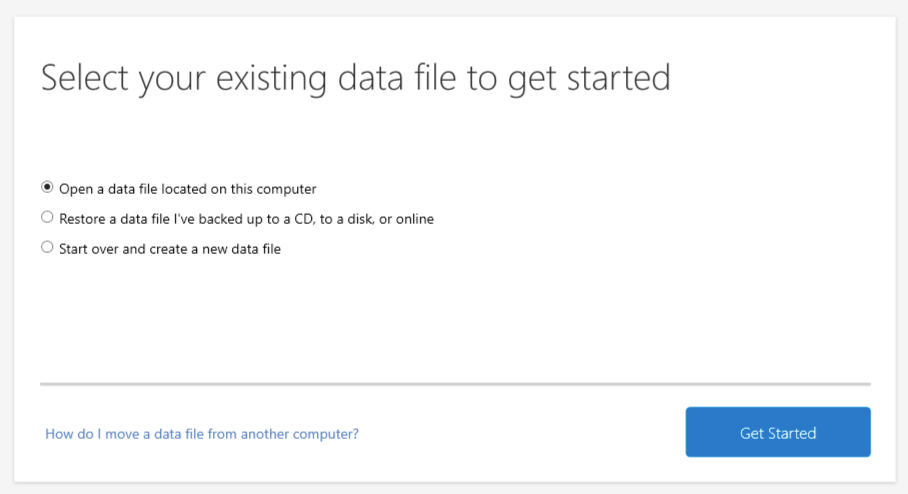
If your data file is on another computer, click here for instructions on moving your data file.
Please let me know how it goes!
Quicken Kristina
Make sure to sign up for the email digest to see a round up of your top posts.
0 - Follow the on-screen instructions to complete the installation.

