OneDrive warning on starting Quicken
I get this warning now (been using OneDrive and Quicken for over a year with no Issues).
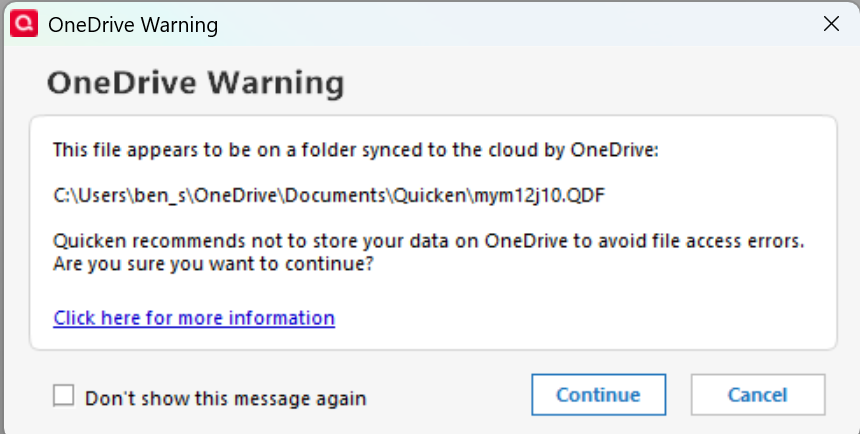
If I click for more information, it gives a step by step process that takes the quicken file out of OneDrive. Unfortunately, if I follow that procedure, the results it predicts are not what I see on my computer.
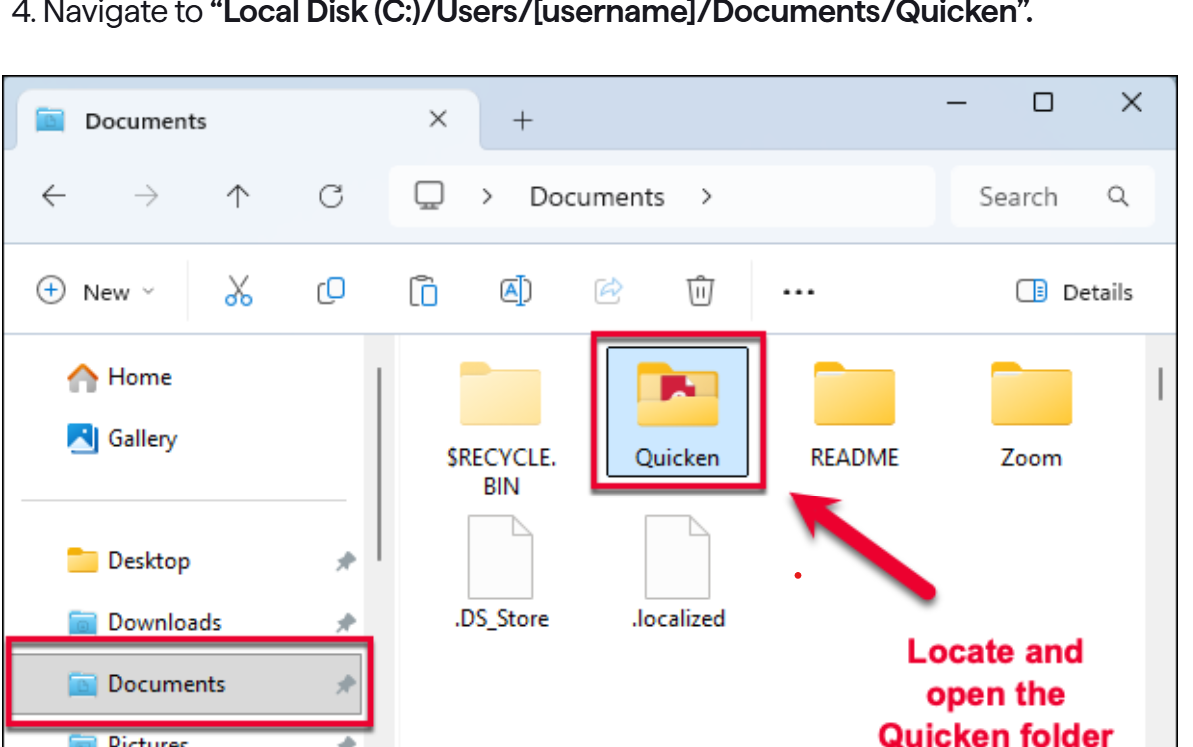
The folder on my computer (C:\Users\ben_s\Documents) is empty and does not look like above. Anyone else have this issue. Does the suggested procedure have errors.
Comments
-
I am having the same problem. Just started yesterday. Unable to correct it based on the step by step. Would love to know how to correct it.
1 -
@Ben12 Are you sure that the Documents shortcut you highlighted is not still the one on OneDrive? Try navigating using File Explorer to C:\Users\ben_s and then click on Documents to be sure.
0 -
Thank you for letting us know you're encountering this issue.
As @cyberphile stated, it's possible that the pinned folder is the one synced with OneDrive.
In your File Explorer, you can type the location in manually.
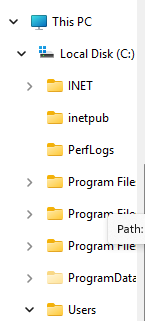
Alternatively, you can scroll down to This PC>Local Disk>Users.
Following that path can help ensure you're viewing the local documents folder, not the one synced with OneDrive.
Warning: Close your Quicken file prior to moving it.
I hope this helps!
Quicken Kristina
Make sure to sign up for the email digest to see a round up of your top posts.
0 -
AI gave very clear advice on the problem and solution.
Microsoft's stance is that OneDrive itself does not have mechanisms to corrupt or alter files; it simply uploads and stores them safely in the cloud. However, technical conflicts can arise between Quicken's database structure and OneDrive's sync behavior, leading to potential data corruption. [1, 2, 3]
To prevent these issues, Microsoft and experienced community users recommend the following strategies:
1. Store Active Files Externally from Sync Folders [4, 5]
The primary recommendation is to move your active (.QDF) data file to a local folder that is not managed by OneDrive. [4, 6]
- Standard Conflict: Windows often defaults the "Documents" folder to be inside OneDrive (C:\Users\USERNAME\OneDrive\Documents), meaning your Quicken files are synced by default.
- The Fix: Create a dedicated folder directly on your drive (e.g., C:\QuickenData) and move your active file there. This keeps Quicken in sole control while you are working. [6, 7]
2. Manual Pause/Resume Syncing
If you must keep your file in a OneDrive-synced folder, you should manually pause OneDrive syncing before opening Quicken and only resume it once Quicken is completely closed. [8, 9]
- This prevents OneDrive from "grabbing" the file to sync it while Quicken is mid-operation, which is a common cause of crashes and corruption. [9, 10]
3. Use "Always Keep on This Device"
Ensure the folder containing your Quicken files is set to "Always keep on this device.". [9, 11]
- This forces OneDrive to maintain a full local copy of the file rather than a "cloud-only" placeholder, which can cause Quicken to hang or error out when it tries to access data. [10, 12]
4. Leverage OneDrive for Backups Only [13]
Microsoft and Quicken both agree that OneDrive is an excellent tool for storing backup files. [4, 12]
- Configure Quicken to save its automatic backups to a OneDrive-synced folder. Since these are static copies created after you finish working, they are safe from the sync conflicts that plague active files. [2, 6, 14, 15]
5. Recovery via Version History [16]
If corruption does occur, Microsoft 365 subscribers can use OneDrive Version History to roll back to a clean copy from the last 30 days. This is often faster than performing a full manual restore if only the recent sync was problematic. [14, 17, 18]
Would you like help with the steps to move your Quicken file out of the OneDrive folder safely?
[1] https://learn.microsoft.com
[2] https://community.quicken.com
[3] https://community.quicken.com
[5] https://techcommunity.microsoft.com
[6] https://community.quicken.com
[7] https://community.quicken.com
[8] https://community.quicken.com
[9] https://community.quicken.com
[10] https://community.quicken.com
[11] https://community.quicken.com
[12] https://community.quicken.com
[13] https://community.quicken.com
[14] https://community.quicken.com
[15] https://community.quicken.com
[16] https://nettechconsultants.com
[17] https://support.microsoft.com
[18] https://learn.microsoft.com
To move your Quicken data file out of OneDrive safely, you must first close the Quicken application to prevent file locks or active syncing. [1, 2]
Step 1: Locate and Prepare Your File
- Close Quicken completely.
- Open Windows File Explorer and navigate to your current Quicken folder, typically located at C:\Users\[Username]\OneDrive\Documents\Quicken.
- Right-click your active data file (the one ending in .QDF) and select Cut. [1, 2, 3, 4, 5]
Step 2: Move to a Non-Syncing Folder
- Navigate to a local drive location that is not managed by OneDrive. A common choice is to create a folder directly on your C: drive, such as C:\QuickenData.
- Open that new folder, right-click in a blank space, and select Paste.
- (Optional) You can move the entire "Quicken" folder from Documents to the new location to keep your data and backups together while separating them from OneDrive. [1, 3, 6, 7, 8]
Step 3: Re-link Quicken to the New Location [9]
- In your new folder (e.g., C:\QuickenData), double-click the .QDF file you just moved.
- Quicken will launch and open that specific file. It will now "remember" this new local path as the default location for future sessions. [3, 6, 8, 10, 11]
Quicken Classic for Windows - How to move your files with ..., YouTube · Quicken · 2022 M09 19
Step 4: Verify Your Backup Settings [5]
Since you moved your file out of a cloud-synced folder, you should ensure your automated backups are still being sent to a safe place. [3]
- In Quicken, go to File > Backup and Restore > Backup Quicken File.
- Click Change and select a folder that is synced with OneDrive or another cloud service. This keeps your active file safe from sync errors while ensuring you still have cloud-based recovery options. [10, 12, 13, 14, 15]
Would you like to know how to redirect your automatic backups specifically to a new folder?
[2] https://community.quicken.com
[3] https://community.quicken.com
[4] https://community.quicken.com
[6] https://community.quicken.com
[7] https://help.illinoisstate.edu
[8] https://community.quicken.com
[10] https://community.quicken.com
[11] https://community.quicken.com
[15] https://community.quicken.com
To redirect your automatic backups, you will need to adjust the settings within the Quicken Backup Preferences. This allows you to keep your active data file on a safe local drive while ensuring copies are sent to OneDrive for extra security. [1, 2, 3, 4]
Steps for Quicken Windows
- Open Backup Preferences: Go to the Edit menu and select Preferences.
- Select Backup: In the list on the left, choose Backup under the "Setup" category.
- Change the Directory: Locate the "Automatic Backups" section. Click the Change link next to the current path.
- Select OneDrive Folder: Browse to your OneDrive folder (e.g., C:\Users\[Username]\OneDrive\Documents\QuickenBackups) and click OK.
- Adjust Frequency: Ensure "Automatic Backups" is checked. You can also set how many copies to keep (Microsoft and Quicken experts often suggest between 5 and 20). [2, 3, 4, 5, 6]
Steps for Quicken Mac
- Open Settings: Go to the Quicken menu and select Settings.
- Go to Backup: Click the Backup tab at the top of the window.
- Choose Folder: Click the Backup Folder button to choose your new location within OneDrive.
- Confirm: Ensure "Automatically create a local backup when quitting Quicken" is enabled. [4, 7, 8, 9, 10]
Why this works
By splitting these locations, Quicken can write to your local drive without any lag or "sync-lock" issues from OneDrive. Once you close Quicken, it saves a copy to your OneDrive folder, which then syncs to the cloud as a completed, static file—avoiding the corruption risks of live syncing.
Would you like to know how to restore a file from these backups if you ever need to?
[1] https://community.quicken.com
[5] https://community.quicken.com
[6] https://community.quicken.com
0